How to Sign In and Use an Apple ID: A Step-by-Step Guide
Learn how to sign in to the App Store on older and newer iOS versions, change your Apple ID password and security settings, and troubleshoot common login issues with this step-by-step guide.
After purchasing an Apple ID from 号小二, please follow the steps below to sign in.
Important: The Apple ID you purchased is for signing in to the App Store only. Do NOT sign in to iCloud, or you may lock your device or run into other issues!!!
Method 1: Signing in on older iOS versions
Open the App Store and tap the profile icon in the top-right corner.
Scroll to the bottom of the page and tap "Sign Out".
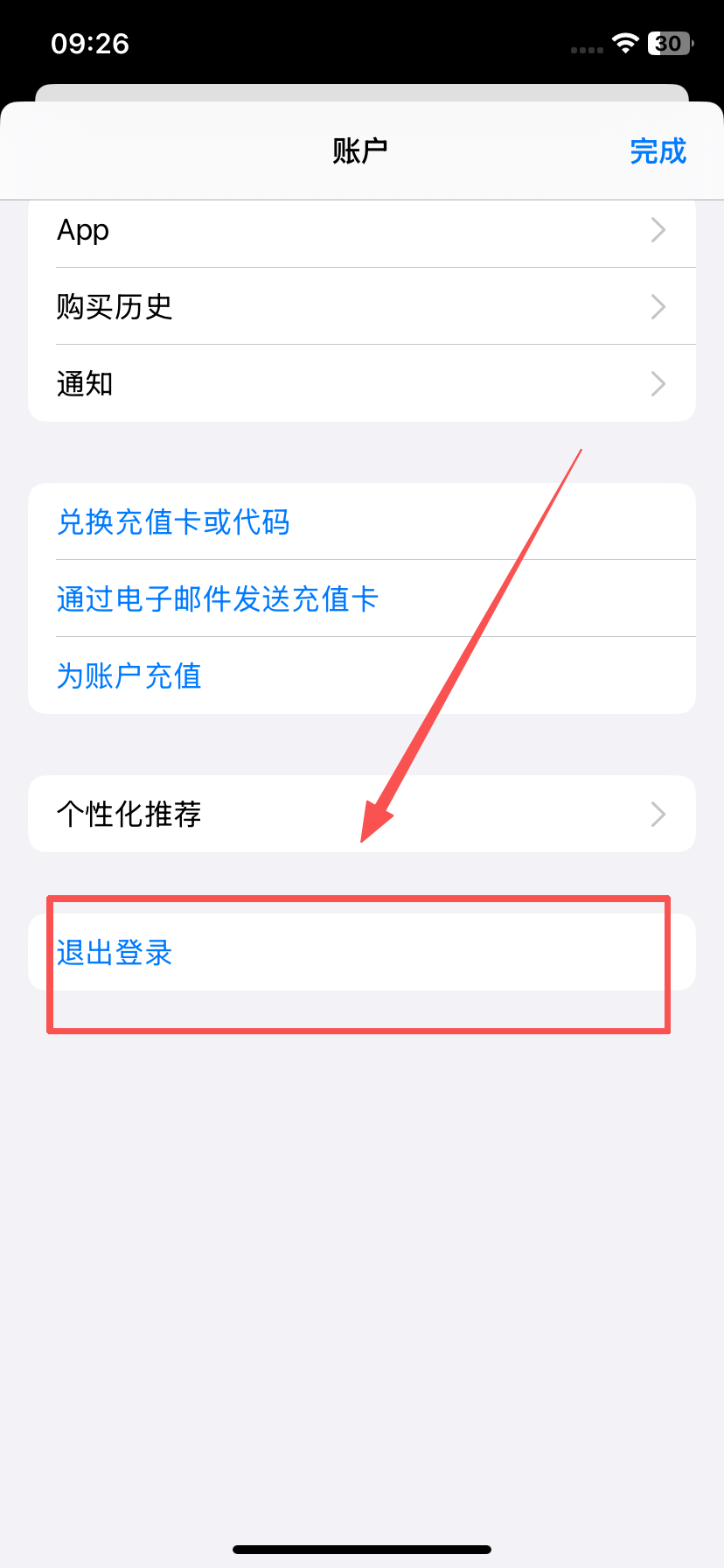
Scroll back to the top and enter the Apple ID and password you purchased.
Tap "Sign In" and complete the verification as prompted.
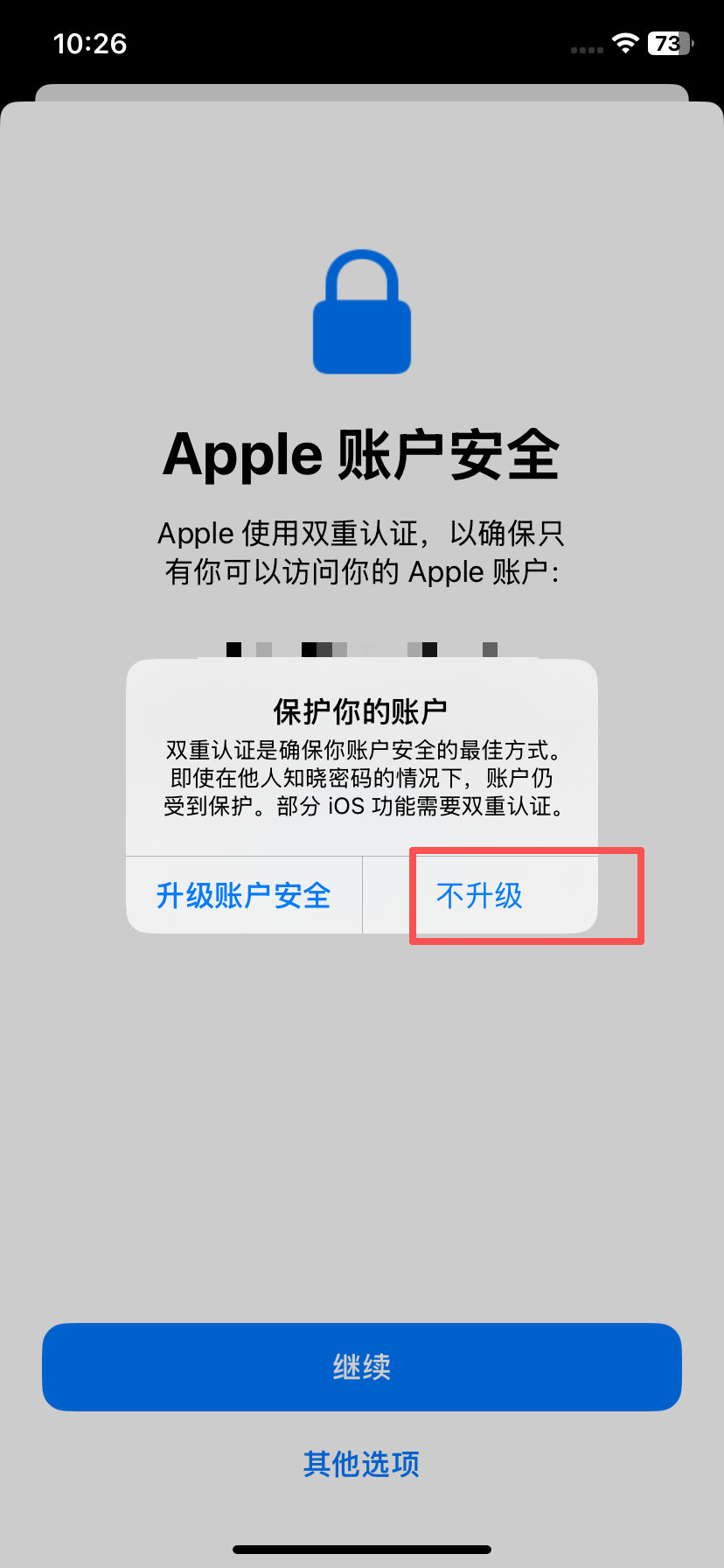
Skip security verification: If a pop-up asks about "Apple ID Security" or offers two-factor authentication, choose "Other Options" ➔ "Don't Upgrade" to skip it (never link your personal phone number).
Once signed in, you can search for and download the apps you need.
Method 2: Signing in on newer iOS versions
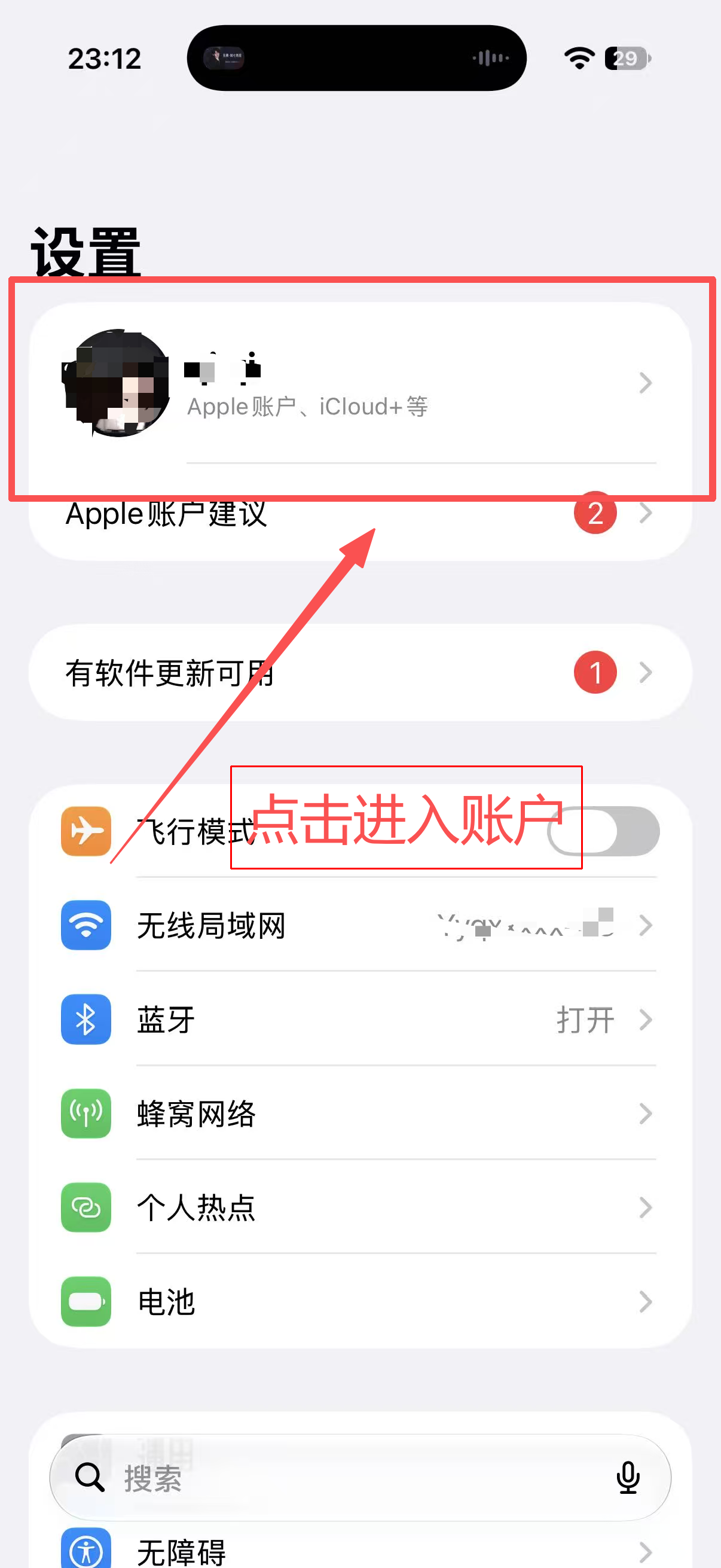
Open "Settings" on your phone and tap your Apple Account at the top.
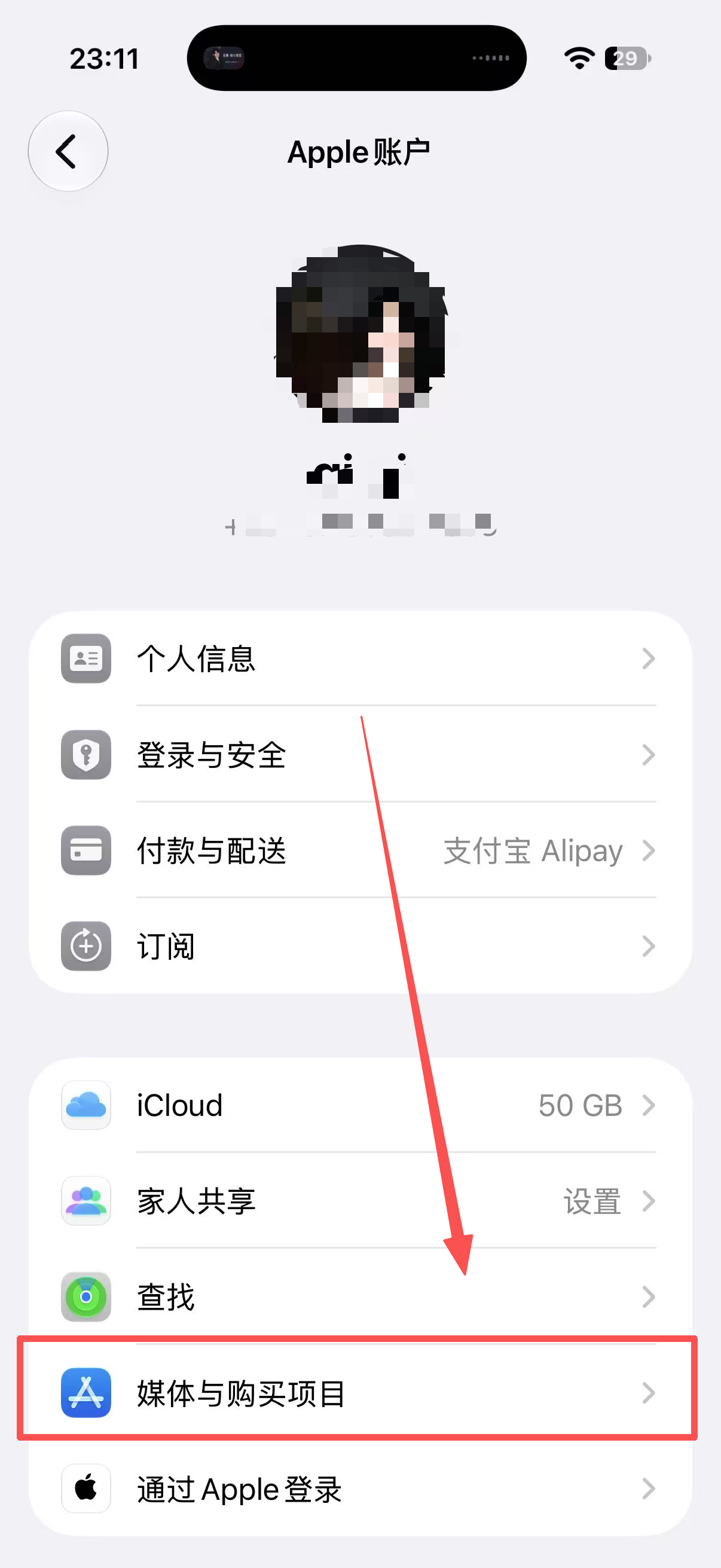
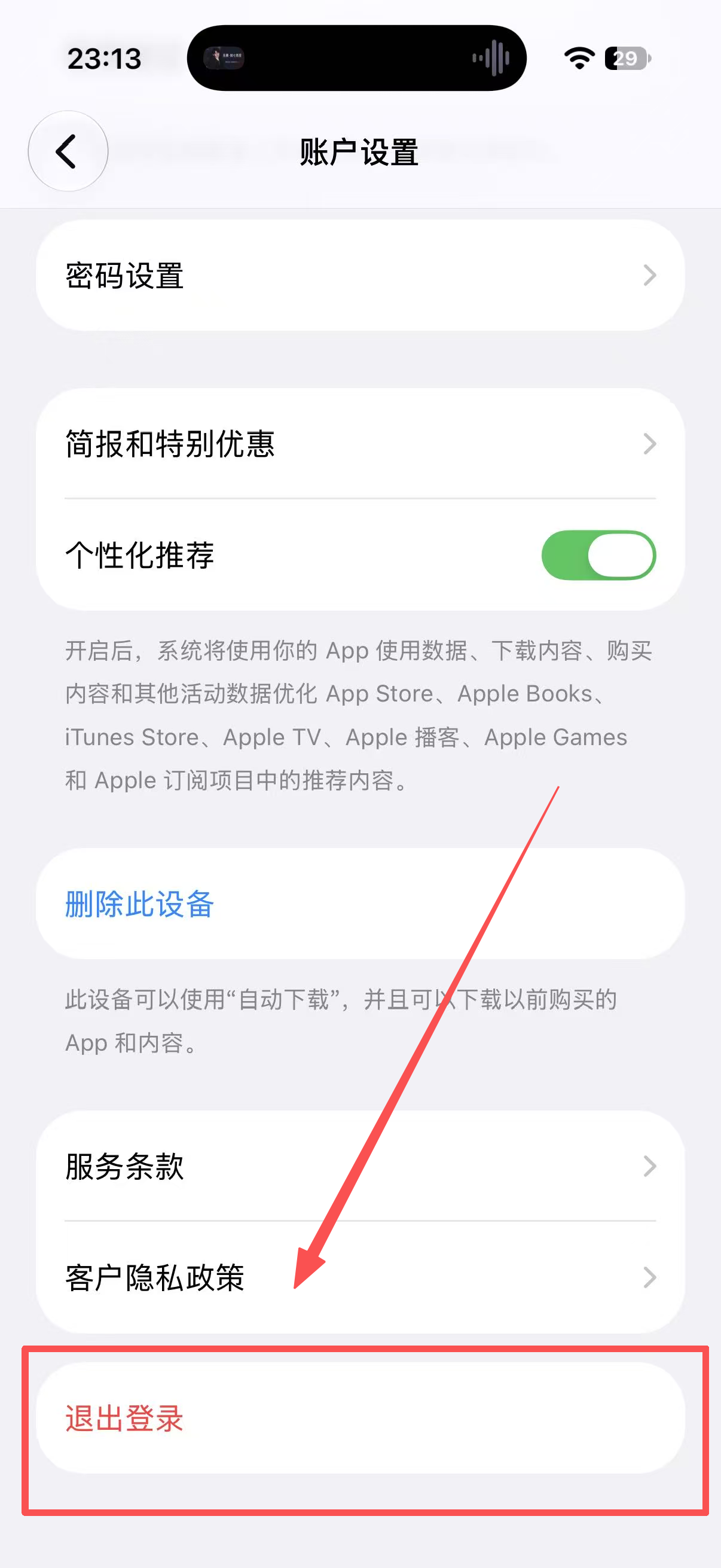
Find "Media & Purchases" and tap "Sign Out".
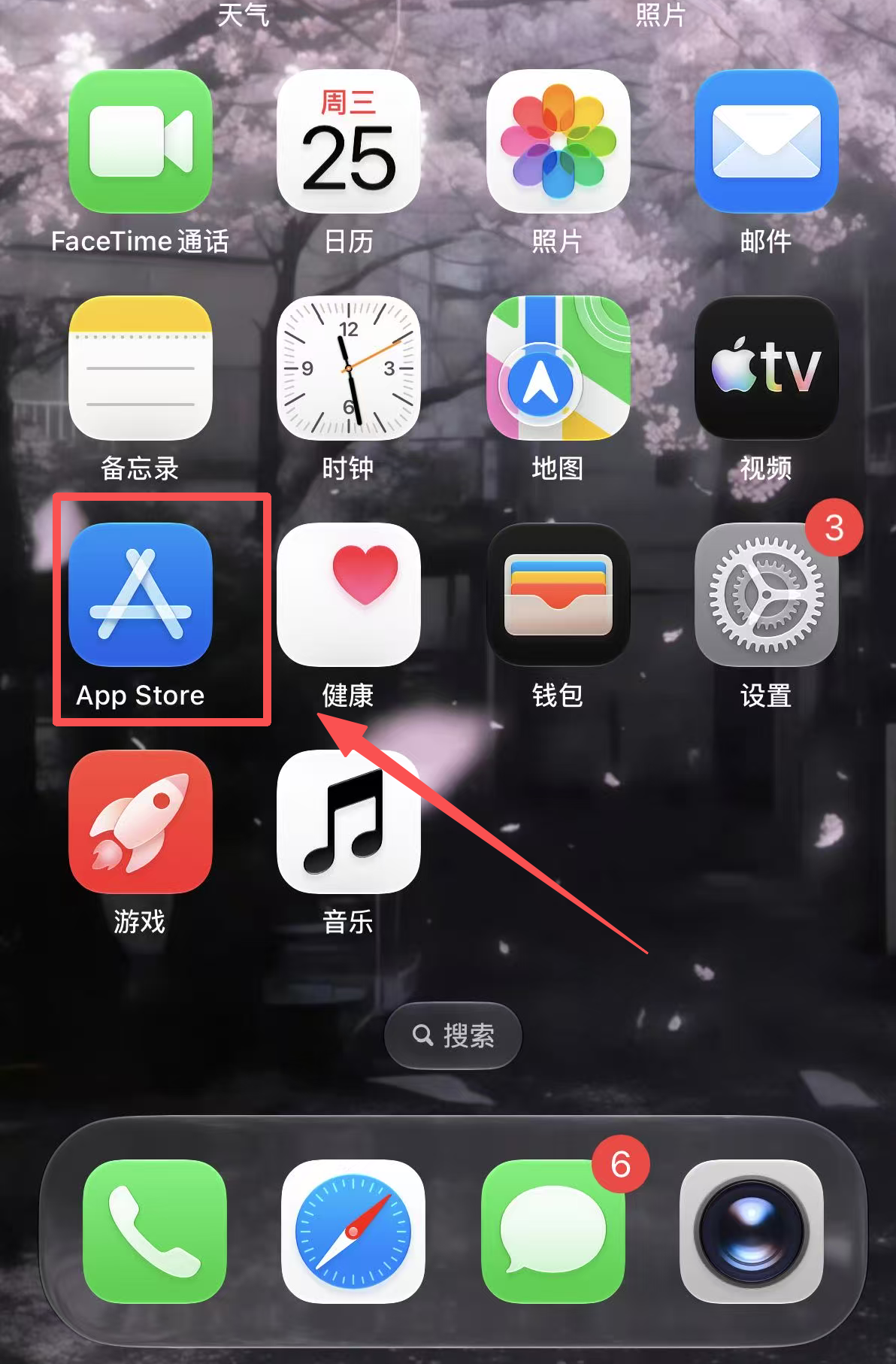
Go back to your home screen and open the App Store.
Tap the profile icon in the top-right corner and enter the Apple ID and password you purchased.
Once signed in, you can download apps as usual.
Special note: On newer iOS versions, you only need to sign out of the account under "Media & Purchases". Do NOT sign out of your phone's original iCloud account. The exact menu options may vary depending on your iOS version.
2. How do I change my Apple ID password and security questions?
Go to Apple's official account management website: https://account.apple.com/
Enter your Apple ID and password.
Complete identity verification as prompted.
Go to "Sign-In and Security" to change your password and related security information.
Please keep the updated password and security information safe.
For detailed instructions, click here: https://www.haoxiaoer.com/blog/security-email-password-buying-how-to-change
3. Common issues and solutions
1. What should I do if it says the account or password is incorrect?
Check that you copied the full account and password, and watch out for uppercase/lowercase letters and extra spaces before or after.
2. What if it says it can't connect to the App Store when signing in?
Try switching between Wi-Fi and mobile data, then reopen the App Store and sign in again.
3. What if I can't find the app I want to download after signing in?
Make sure the region of the Apple ID you purchased supports that app.
4. I bought an Apple ID with Shadowrocket (小火箭). How do I download it?
After signing in to the App Store, search for Shadowrocket (小火箭) and download it—the app has already been purchased on this account.
5. Why does updating an app ask for a different Apple ID password?
Apps are tied to the account that originally downloaded them. You can update with the original account, or back up your important data, delete the app, and re-download it with your current account.
6. What should I do if the account is locked or disabled?
Don't keep trying to sign in. Contact 号小二 customer service right away.
4. Usage guidelines
Never sign in to iCloud with a purchased account.
Don't switch devices frequently or sign in repeatedly.
Don't delete the security information linked to the account.
If you have an exclusive account, don't share it with others.
If you run into sign-in issues you can't resolve, contact 号小二 online customer service.
After-sales service and warranty periods are subject to the description on the corresponding product page.