How to Set Up a Google Gmail Account After First Login: Password, Recovery Email, and Security Takeover Guide
This complete guide details essential Google account setup and security steps after logging in to Gmail for the first time. Learn how to update passwords, recovery email, phone numbers, active devices, 2FA, and Passkeys to ensure full account control and long-term security.
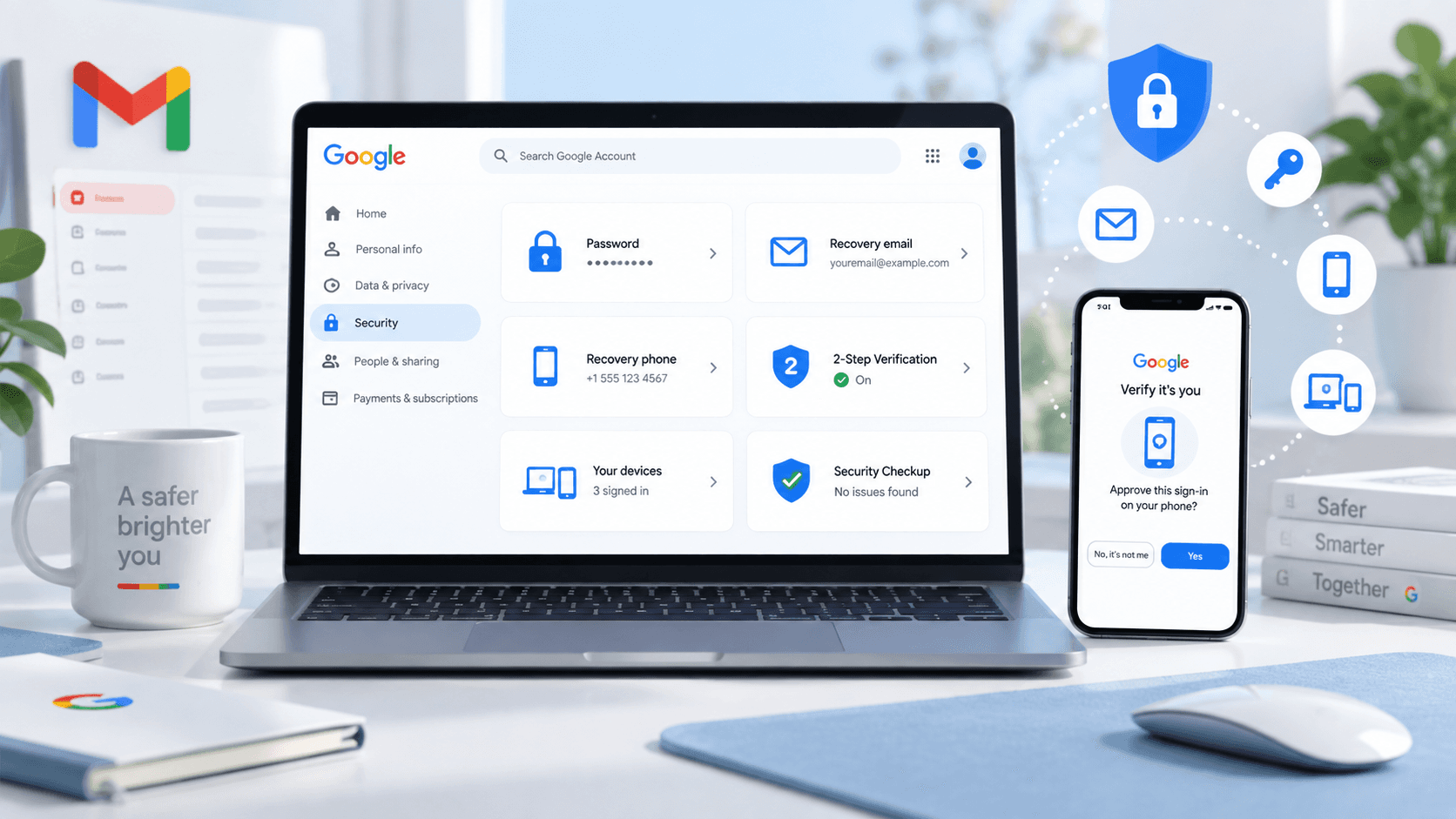
Logging into a Google Gmail email account for the first time and being able to access the inbox does not mean all settings are already complete. Especially for accounts you plan to use long-term, what really needs to be confirmed is whether the password, recovery email, recovery phone number, login devices, and two-step verification are all under your control.
If the Gmail was just registered by yourself, these issues are usually simpler because the account information was set up by you from the start. But if you are using a ready-made Gmail, it is even more necessary to do a security check after the first login. Rather than rushing to bind ChatGPT, social platforms, or other websites, it is better to spend a few minutes confirming account control first, which will save a lot of trouble later.
1. After first logging into Gmail, don't rush to bind other platforms
After entering Gmail, first confirm that the mailbox can open normally and that the account password is valid, then go to the Google Account security settings page. At this point, focus on checking: whether the current password is under your control; whether the recovery email and recovery phone number are normal; whether there are any login devices you do not recognize; who controls two-step verification; and whether there are any unfamiliar third-party app authorizations.
If you have not checked this information and directly use the Gmail to bind important websites, once the account has login problems later, handling them will be much more troublesome. Especially for ready-made Gmail obtained through third-party channels, "can log in now" and "will always be under my control later" are actually two different things.
2. Change the password first, then check the recovery email and phone number
The first security setup can start with the password.
Gmail does not use a separate "email password"; it uses the login password for the entire Google Account. After changing it, Gmail, YouTube, Google Drive, and other services using the same Google Account will be affected.
After entering your Google Account, you can go to: Security and sign-in → How you sign in to Google → Password
Change the current password: the new password should preferably not continue to use the account's original initial password, nor directly use your phone number, birthday, or the same password already used on other websites. Google officially also recommends setting a unique password for the account. After changing or resetting the password, the account will usually be signed out from most devices, but devices used for identity verification and some third-party apps that have already obtained account access may not be automatically signed out. Therefore, after changing the password, it is still necessary to continue checking login devices.
After handling the password, check the recovery email and recovery phone number.
Many users are used to calling the recovery email a "Gmail backup email." Its main purpose is to help recover the account when you forget your password, cannot log in normally, or the account becomes abnormal.
If you plan to use this Gmail long-term, the recovery email should preferably be set to another email you can access long-term, and the recovery phone number should also be one you can use to receive SMS normally and control long-term. Google currently also explicitly recommends that the recovery email be different from the login email, and that the recovery phone number belong to you and be used frequently.
There is also an easily overlooked point here: completing the modification of recovery information does not necessarily mean the old information will immediately become completely invalid. Google officially states that after modifying recovery information or other authentication methods, the previous information may still receive verification codes in some cases within 7 days. So for a newly acquired Gmail, do not think all security settings are complete just because you changed one recovery email. The login devices and verification methods still need to be checked afterward.

3. Check login devices and third-party apps
After confirming the password and recovery information, the next step is to see which other devices are still using this Google Account.
Go to your Google Account: Security and sign-in → Your devices
You can view phones, computers, and browser sessions currently and recently using this account.
If a completely unfamiliar device appears, you can enter the corresponding device to view details and sign out according to the actual situation.
There is no need to delete everything just because you see multiple devices, because the same computer using different browsers, or different apps on the same phone, may create different sessions. The main things to judge are the device type, recent activity time, and whether it is your own device.
Also check whether the account has connected third-party apps.
For example, websites or apps previously authorized through "Sign in with Google" may still retain some account access. For third-party apps you no longer use or completely do not recognize, you can revoke the corresponding authorization. This item is often overlooked.
Many people think that after changing the Gmail password, the security takeover is complete. In fact, if unfamiliar devices, third-party authorizations, or other verification methods remain in the account, changing the password alone cannot replace a complete check. Google itself also specifically points out in its password change instructions that some third-party apps that have obtained account access may not automatically sign out just because the password was changed.
4. Check two-step verification and Passkeys
Next, you need to confirm the login verification methods.
If the Gmail is going to be used to bind important platforms, it is recommended to check whether two-step verification is currently enabled for the Google Account and whether the verification methods are under your control.
Google's two-step verification adds extra identity confirmation beyond the password, such as confirming login through a signed-in phone, verification method, or security key. Even if the password is leaked, an attacker may not be able to directly enter the account.
For ready-made Gmail, the key things to check are:
- Whether two-step verification is already enabled;
- Whether the verification phone number is yours;
- Whether there are unfamiliar verification devices;
- Whether there are unfamiliar security keys.
Now there is also an additional setting to check: Passkey.
A Passkey can directly verify a Google Account through a device's fingerprint, face recognition, or screen lock. Compared with traditional passwords, it is more convenient to use, but it also means the device on which the Passkey was created is itself very important.
Google explicitly recommends creating Passkeys only on devices you own and control, because anyone who can unlock that device may also be able to use the passkey stored on it to access the Google Account.
Therefore, if there is a Passkey or device in the security settings that you completely do not recognize, do not simply ignore it.
For ordinary Gmail users, there is no need to enable every verification method. The key is to confirm that the currently existing login and verification methods can all be controlled by you.
5. For Gmail obtained through Haoxiaoer, it is recommended to handle the first login like this
If it is a Gmail you just registered yourself, the password and recovery information are basically set by you, so the first check is usually simpler.
If you are using a ready-made Google Gmail email obtained through Haoxiaoer, it is recommended that after receiving the account, do not just test once whether it "can log in," but complete the basic checks in a fixed order:
Log in to the account → Change the password → Check the recovery email and phone number → View login devices → Check third-party authorizations → Confirm two-step verification and Passkeys.
The whole process is not complicated. The key is to review all information in the account related to subsequent login, verification, and recovery.
For example, the password has been changed, but the recovery email is still not under your control; or the recovery information has been handled, but an unfamiliar Passkey still exists in the account. In these cases, it is not suitable to immediately bind all important business to it.
If the page temporarily does not allow modification of certain sensitive information, there is no need to repeatedly submit it within a short time. Google itself performs additional verification for changes to some important security information, and newly added recovery methods and authentication methods may also require further confirmation.
For ready-made Gmail, what really needs to be done at the first login is to first confirm these basic pieces of information clearly, and then decide whether to use it later for receiving emails, registering for overseas tools, or binding other services.
6. How to judge that Gmail has basically completed security takeover?
You do not need to remember the previous content too complicatedly. Finally, you can check once against the table below.
| Check item | Recommended status |
|---|---|
| Google Account password | Confirmed and managed by yourself |
| Recovery email | You can access it normally |
| Recovery phone number | You can use it normally |
| Login devices | No unfamiliar devices confirmed as abnormal |
| Third-party apps | No unrecognized account authorizations |
| Two-step verification | Verification methods controlled by yourself |
| Passkey | No unfamiliar passkeys |
After completing the above checks, control of the ready-made Gmail account obtained from Haoxiaoer is firmly in your hands. In subsequent use, there is no need to deliberately perform cumbersome "account nurturing" operations, nor to frequently switch nodes or change information. Just use it at the frequency of a normal user. Doing a good job of security groundwork at the first login is the best way to ensure that Google Gmail remains stable long-term without suspension.
Related Q&A
Q1: For a Gmail account just purchased or acquired, does the first login require a specific proxy node?
It is best to use a clean IP that is as close as possible to the account's registration location or historical login environment. Avoid frequently switching nodes between different countries or regions during the first login, and do not log in directly with high-risk public free VPNs. Keeping the network environment stable can greatly reduce the probability of triggering Google's remote login risk control or directly requiring phone number verification.
Q2: When changing the Gmail recovery email or phone number, what should I do if it says "additional verification required" or "cannot be changed"?
This is a security protection mechanism triggered by Google for remote new device logins. In this situation, remember not to repeatedly try to submit within a short time. It is recommended to first stay logged in under the current device and network environment, browse emails normally or use it for 1–2 days, and after the system recognizes the device as a "regular commonly used device," changing security information will be much smoother.
Q3: Why can the old email still receive verification codes when trying to reset the password just after changing the recovery email?
This is Google's official security buffer mechanism. To prevent an account from having all recovery channels instantly erased after malicious theft, Google may still send security notifications or verification codes to the original recovery email or phone number within 7 days after changing key security information. Therefore, after completing information changes, try to avoid triggering sensitive operations within the following 7 days.
Q4: What is the difference between Google Passkey and traditional two-step verification? Do I need to turn it off after first taking over an account?
A Passkey is a login credential directly bound to a specific device using biometric recognition (such as iPhone Touch ID/Face ID or Mac/PC lock screen password). If there is a Passkey in the account security settings created by a device you do not recognize, be sure to delete it! Because the person holding that device can bypass the password and directly log into your Google Account.
Q5: Can one phone number be bound to multiple Gmail accounts as a recovery phone number? Will it cause linked suspension?
Google allows one phone number to serve as the security recovery number for multiple Gmail accounts (or to receive verification codes), but this does not mean unlimited. If one number is bound to too many accounts and one account is suspended for violations, other accounts under the same number may be flagged for linked risk control. It is recommended that long-term main accounts use a phone number that is exclusive or linked to as few accounts as possible.