How to Sign In to Your Gmail Account from HaoXiaoer
Find your delivered account details and follow the desktop or mobile sign-in steps, including recovery-email and 2FA prompts.

This guide explains how to read your delivered Gmail details, sign in on a computer or phone, and respond to recovery-email or two-step verification prompts.
Get Your Account Information
After payment is confirmed and the order is delivered, open the order to view your account details. Use “Copy all” to copy the original text or download the TXT file. You can also check the delivery email address you entered at checkout.
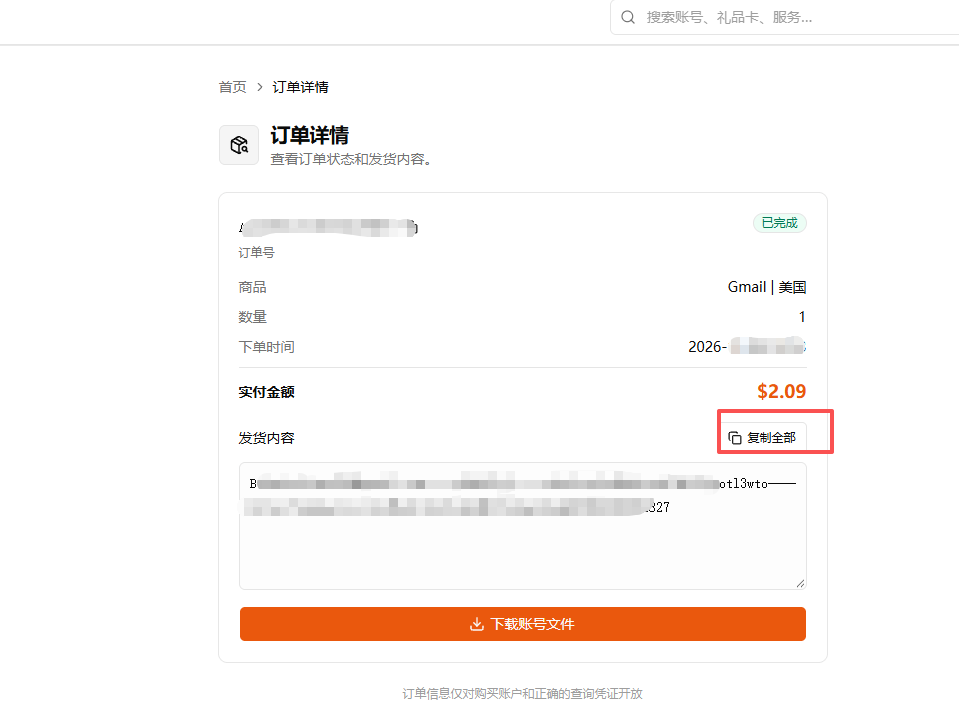
HaoXiaoer Gmail accounts are usually delivered in this format:
email address----password----2FA secret
The first field is the Gmail address; the second is the password. The third field in this format is a 2FA secret used to generate a six-digit authentication code. The secret itself is not the six-digit code, and its length can vary.
Another format is email address----password----recovery email. A field containing an “@” address after the password may be the recovery email. Some orders include both a recovery email and a 2FA secret, or a recovery link. Read the format shown for your selected product; optional fields are not included with every account.
Different product specifications may include different information. Please refer to the description in the "Product Details" section of the specific product page.
How to Log In on Desktop
Step 1: Open Google Chrome
Go to https://accounts.google.com/, or simply click the profile picture button in the top right corner.
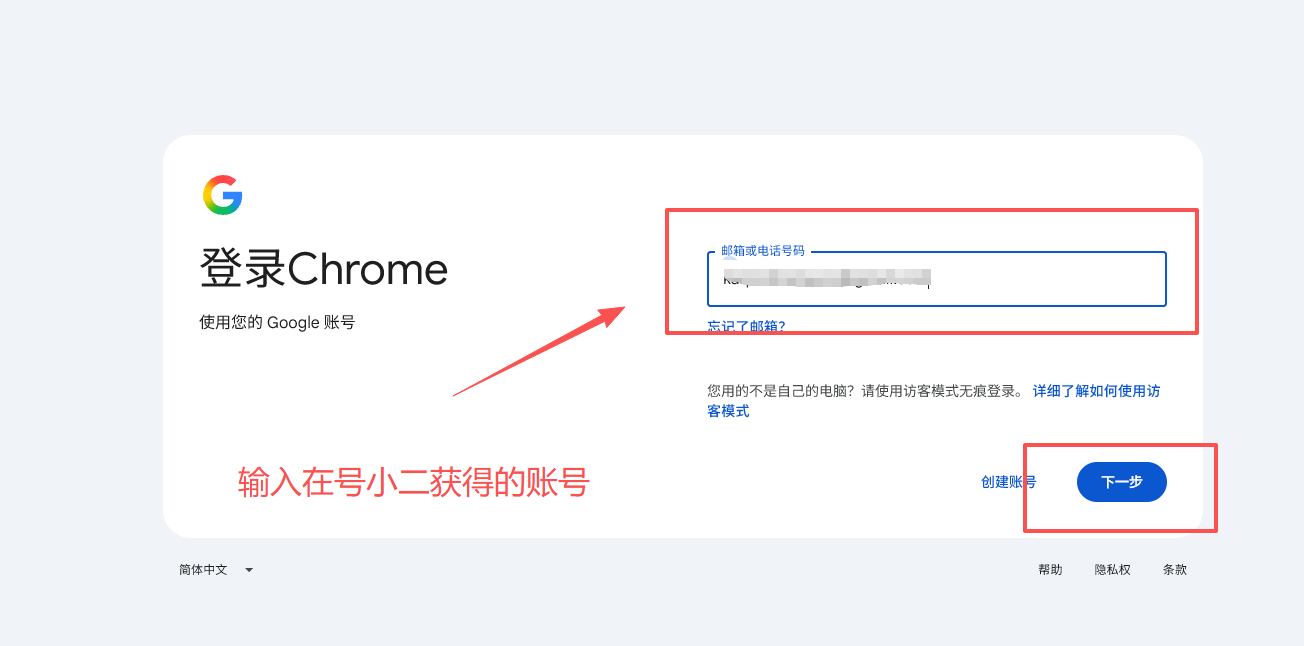
Step 2: Enter your account
On the login page, enter the Gmail account you received after purchase and click "Next".
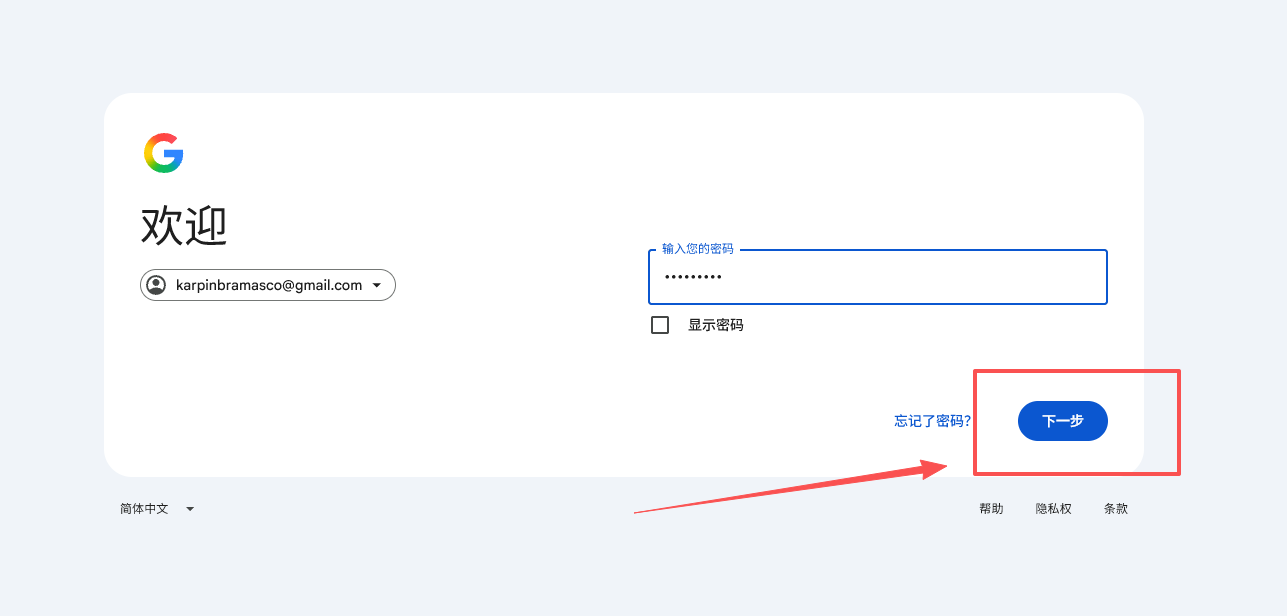
Step 3: Enter your password
Enter the login password provided in your order and click "Next".
Step 4: Complete identity verification
If Google prompts you for two-step verification, complete the verification by following the on-screen instructions.
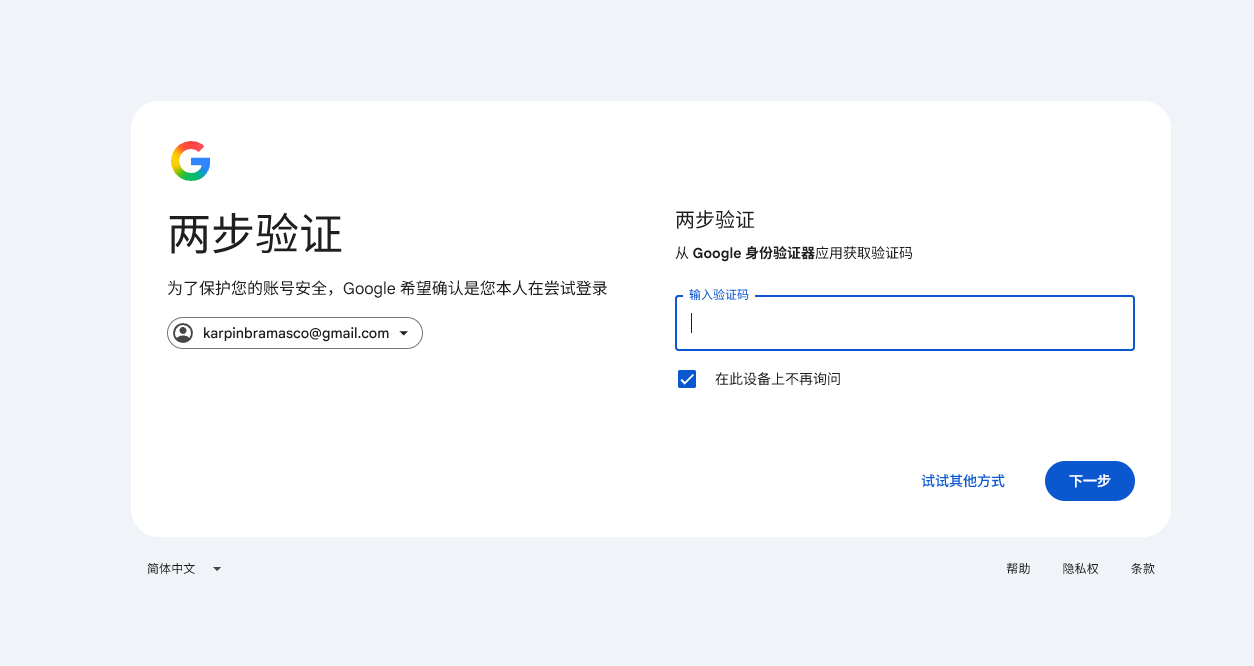
Open HaoXiaoer's dedicated 2FA verification page: https://2fa.haoxiaoer.com/. Paste the 2FA secret from your order into the tool and generate the current six-digit authentication code. Keep the secret private.
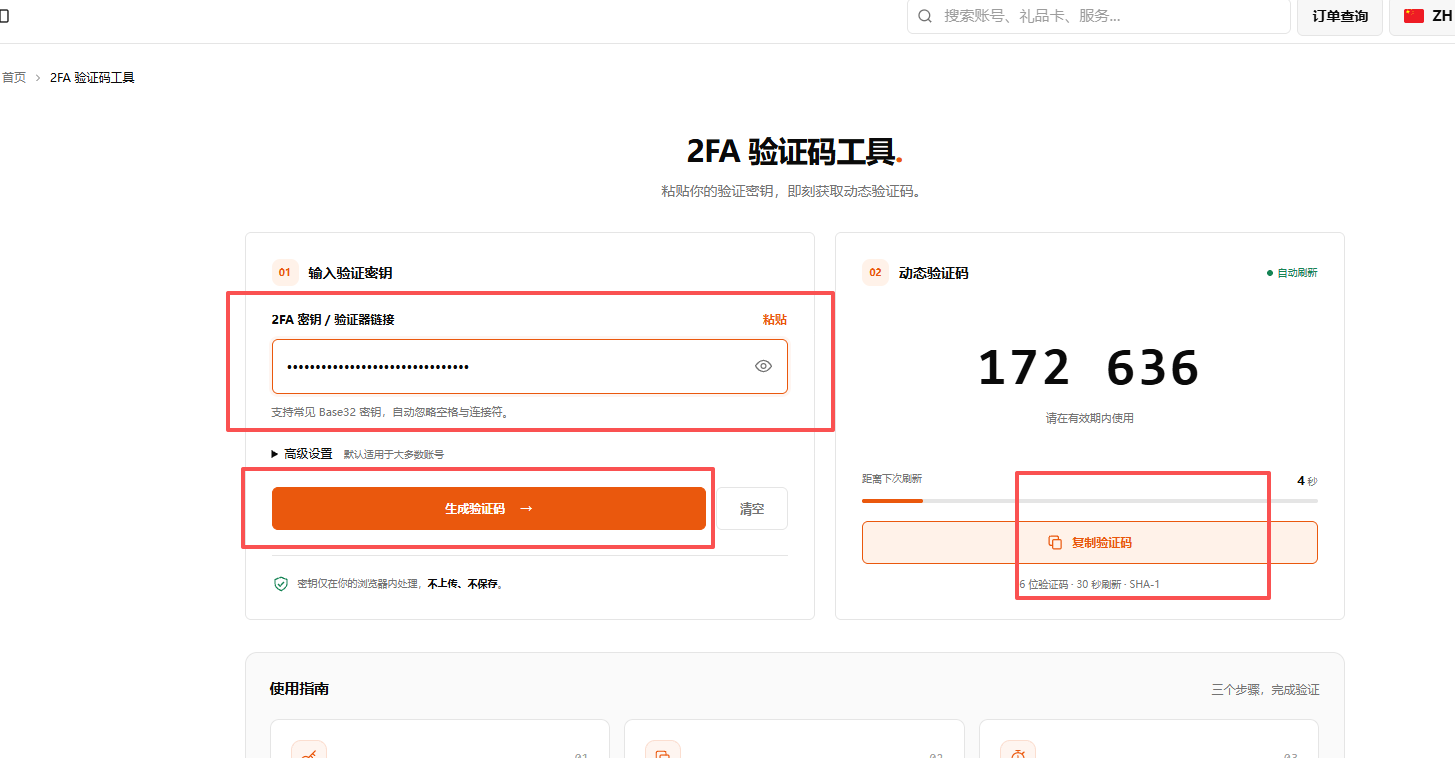
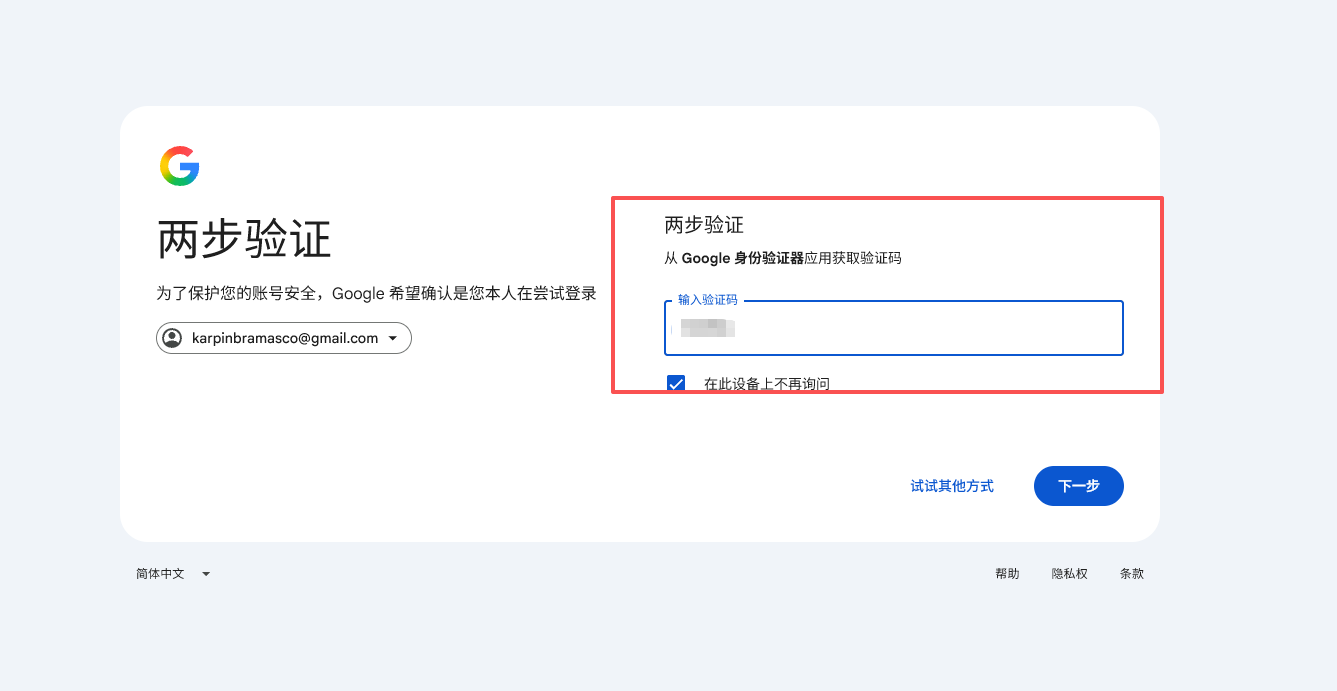
Go back to the login page and enter the six-digit verification code you just received to log in.
How to sign in on mobile
Step 1: Open your browser
Open the Chrome browser on your phone, tap the profile picture in the top right corner, and tap "Add account".
Step 2: Enter your account
Once you're on the login page, enter the Gmail account you received after purchase and tap "Next".
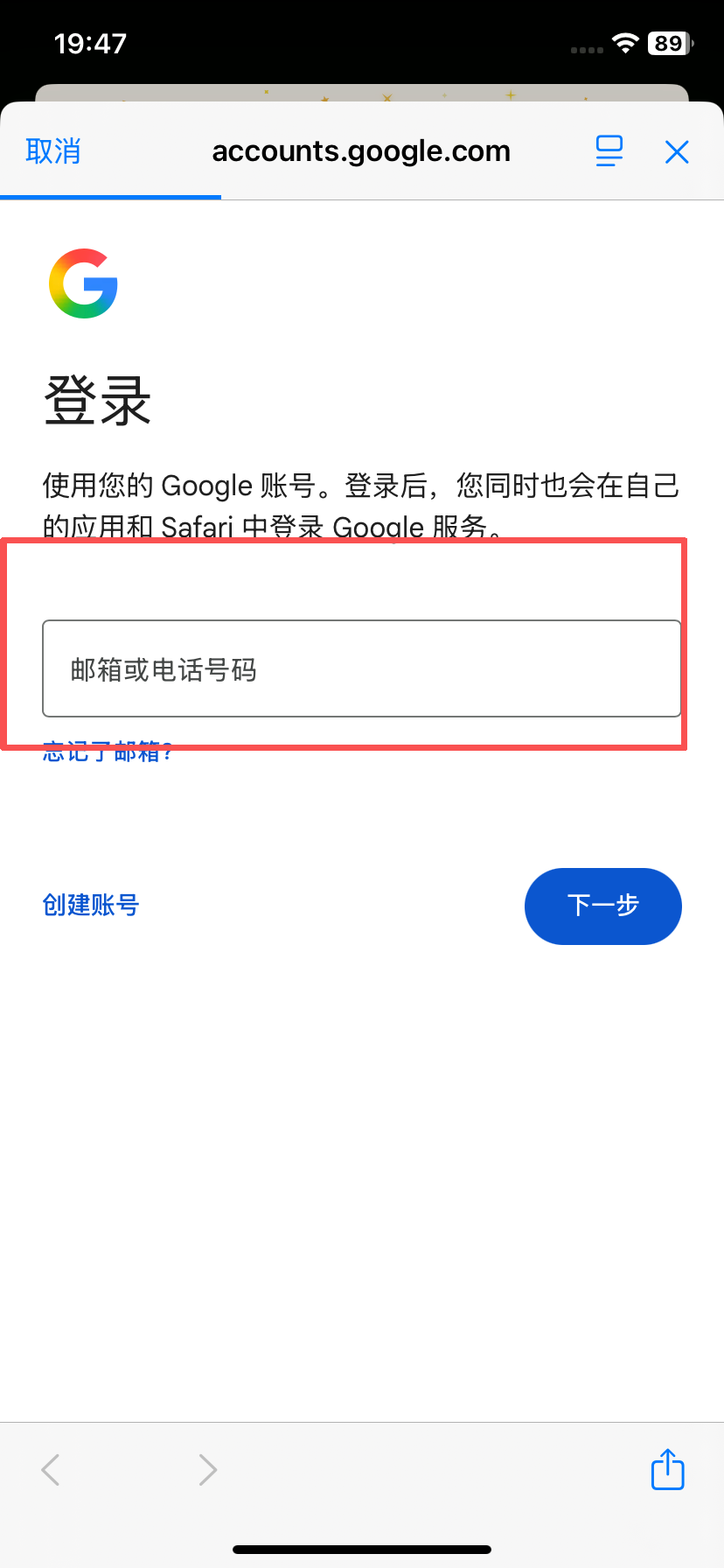
Step 3: Enter your password
Enter the login password provided in your order and tap "Next".
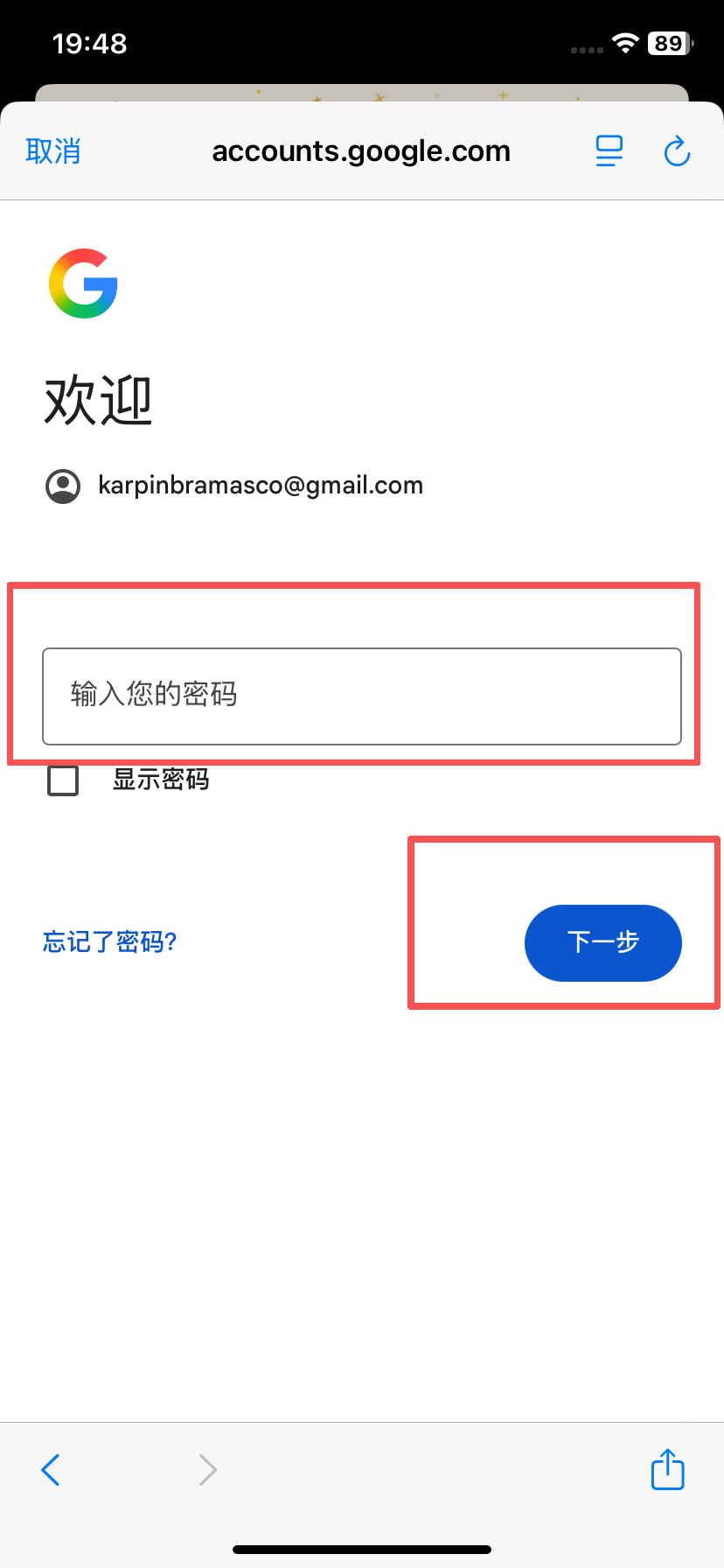
Step 4: Complete identity verification. If Google prompts you for two-step verification, follow these steps:
Open a new browser tab and go to HaoXiaoer's dedicated 2FA verification page: https://2fa.haoxiaoer.com/
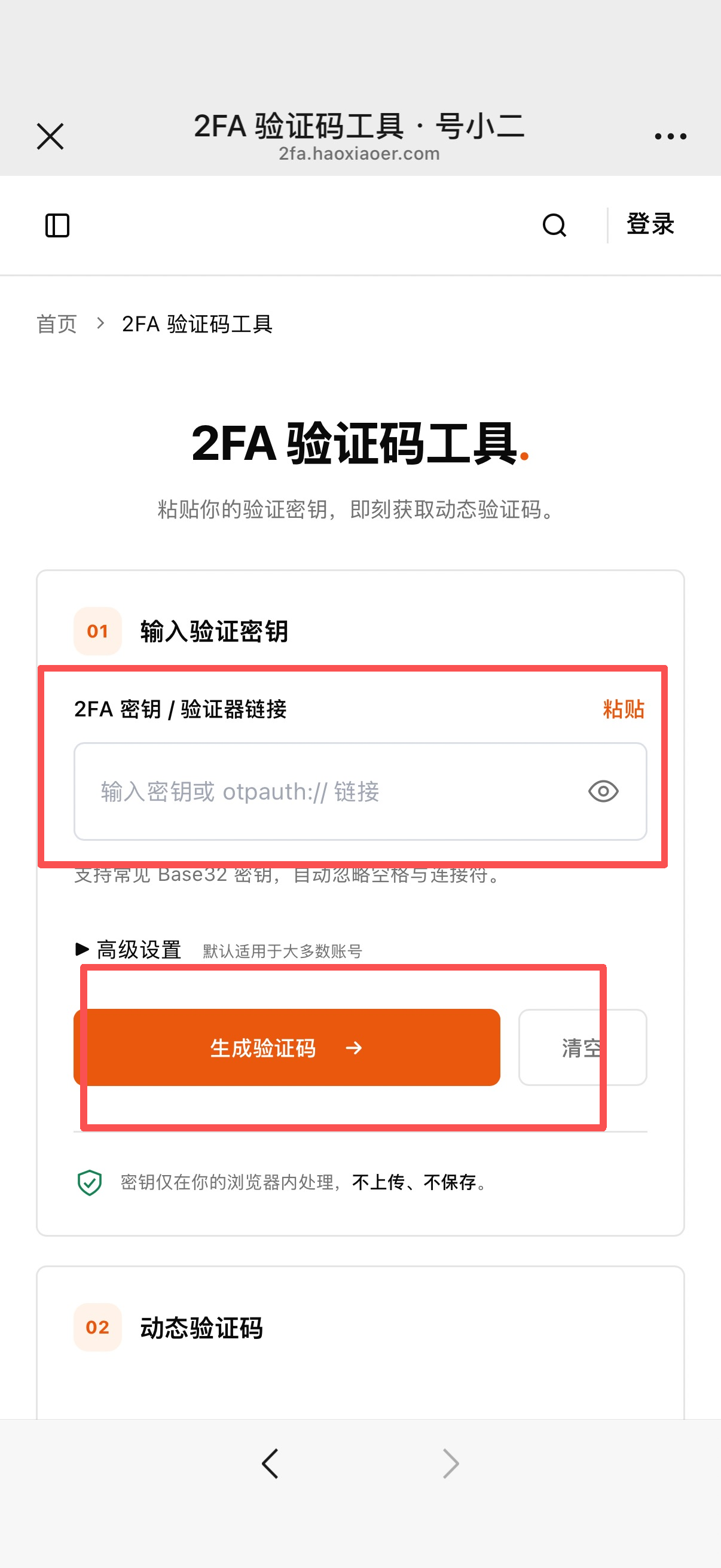
Copy the 2FA secret from your order and paste it into the tool’s input field.
Click "Click to Get Verification Code" to get a six-digit verification code.
Return to the Google login page and enter the six-digit verification code you just received to complete verification.
Step 5: Login successful
Once you've completed the steps above, wait for the page to redirect and you'll be taken to your Gmail inbox, where you can use your email as normal.
Tips:
Verification codes update periodically, so make sure to use the current valid six-digit code.
Your 2FA key is a credential for account security, so keep it safe.
If you encounter any other Google security verification, follow the on-screen instructions.
Try to use your usual device and a normal network environment.
Don't share your account password or verification codes with anyone.
What if login fails?
If you run into login issues, first check the following:
1. "Incorrect password" message
Check that the email address and password are entered correctly, and watch out for capitalization and extra spaces.
2. "Verification required" message
Complete verification by following the instructions on Google's official page.
3. Unable to log in to the account
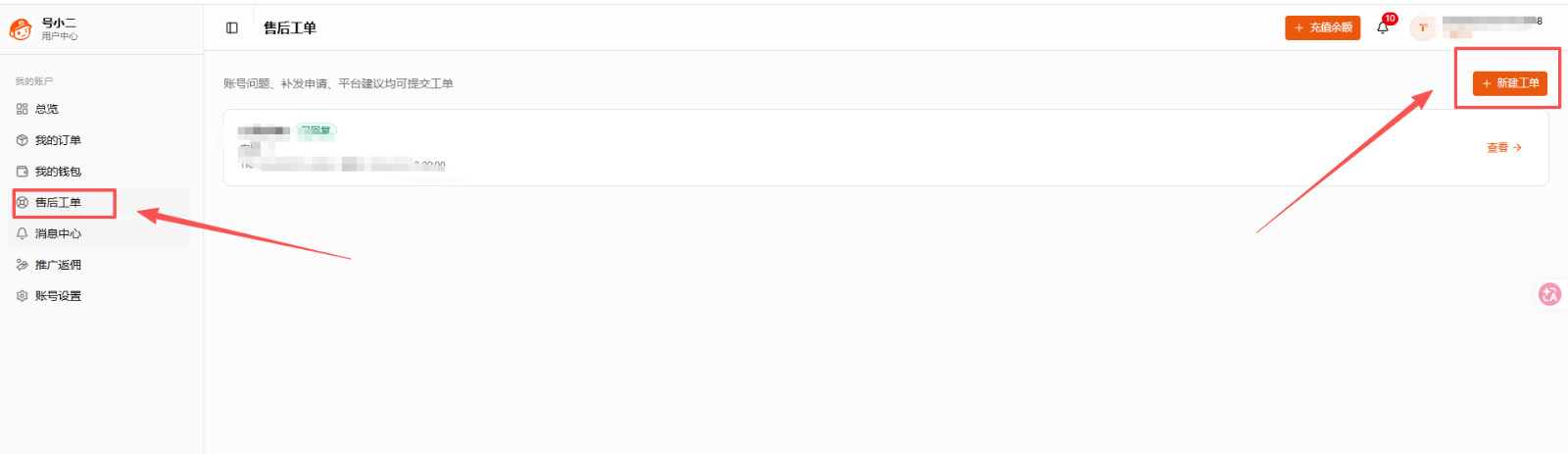
Keep a complete screen recording of the failed first sign-in and your order details. Sign in to HaoXiaoer and submit a support ticket for that order within the product’s stated support period.