Gmail Sign-In: Using 2FA and a Recovery Link
Follow the usual 2FA sign-in steps, then use the matching recovery link from your order if it is included and needed.

After receiving your Gmail account, use a stable, trusted connection and sign in with the supplied email address and password. If Google asks for a two-factor authentication code, enter the 2FA secret from your order into HaoXiaoer’s 2FA tool to generate a six-digit code, then enter it on Google’s sign-in page. If the usual 2FA method does not complete sign-in, follow the recovery-link instructions below.
1. Sign in with your account details
Step 1: Use a stable, trusted connection and open Google’s official sign-in page: https://accounts.google.com/
Step 2: Enter the Gmail address and password from your order, then select “Next.”
Step 3: If Google asks for a 2FA code, use the supplied 2FA secret to generate the six-digit code.
Step 4: Enter that code and follow Google’s prompts to continue.
If sign-in succeeds, you do not need the recovery link.
2. Use the recovery link
If you cannot complete sign-in using the usual 2FA method, use the recovery link supplied with that account, if one is included.
Step 1: Find the recovery link
Open your order details and look in the delivery text for the recovery URL beginning with http. Copy the link.
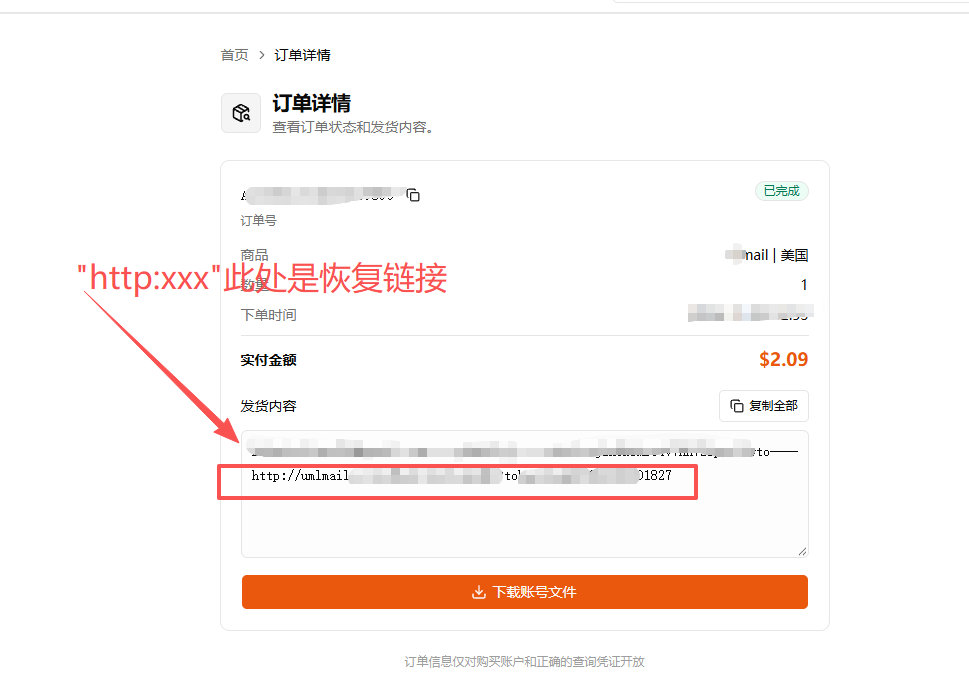
Step 2: Open the recovery link
Open a new browser tab, paste the link into the address bar, and load it. Keep this tab open for the following steps.
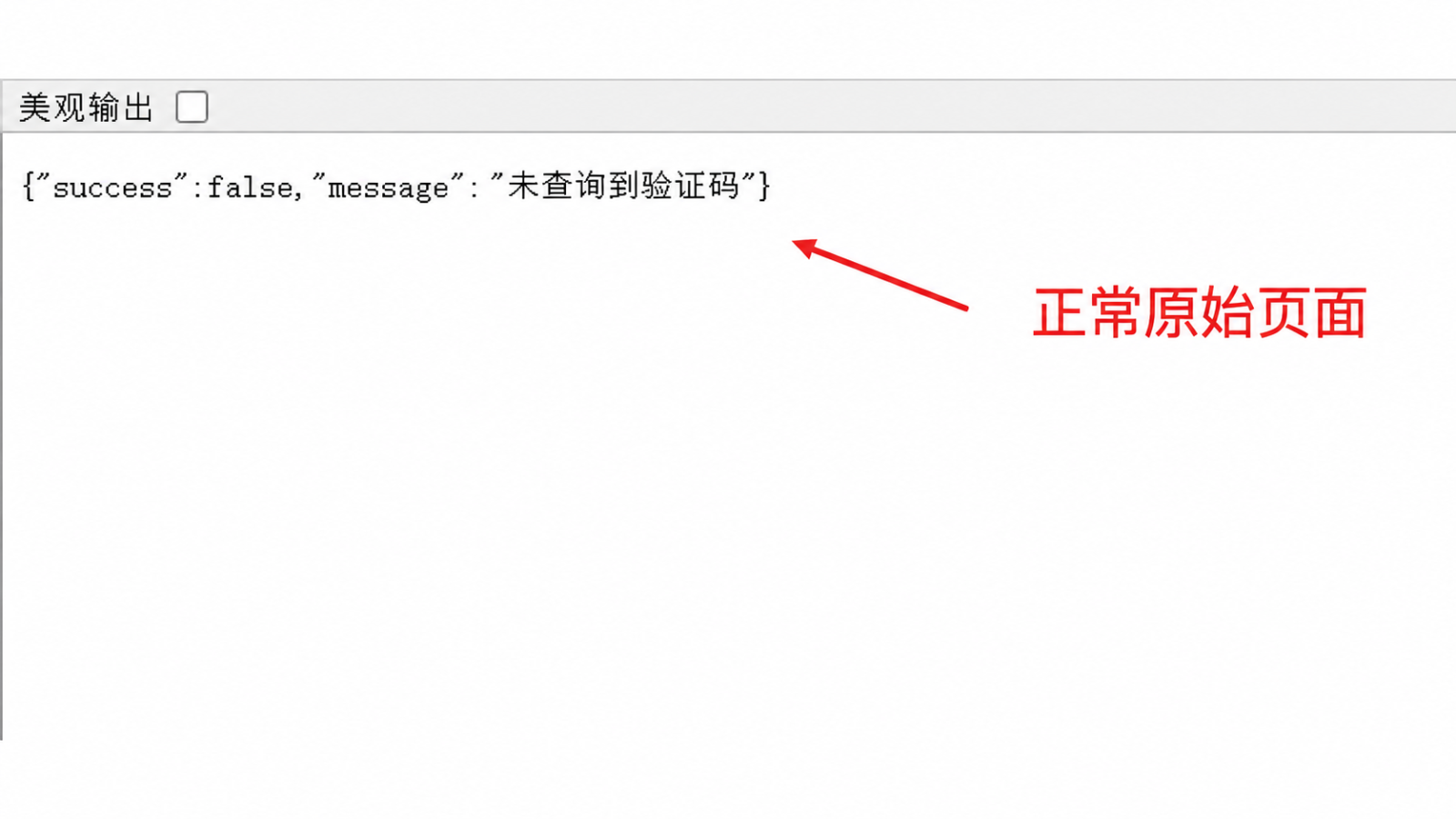
Step 3: Sign in to the matching Gmail account
In another tab, open Google’s official sign-in page and enter the email address and password for that account. When you reach the verification screen shown in the example, select its blue button to request the code.
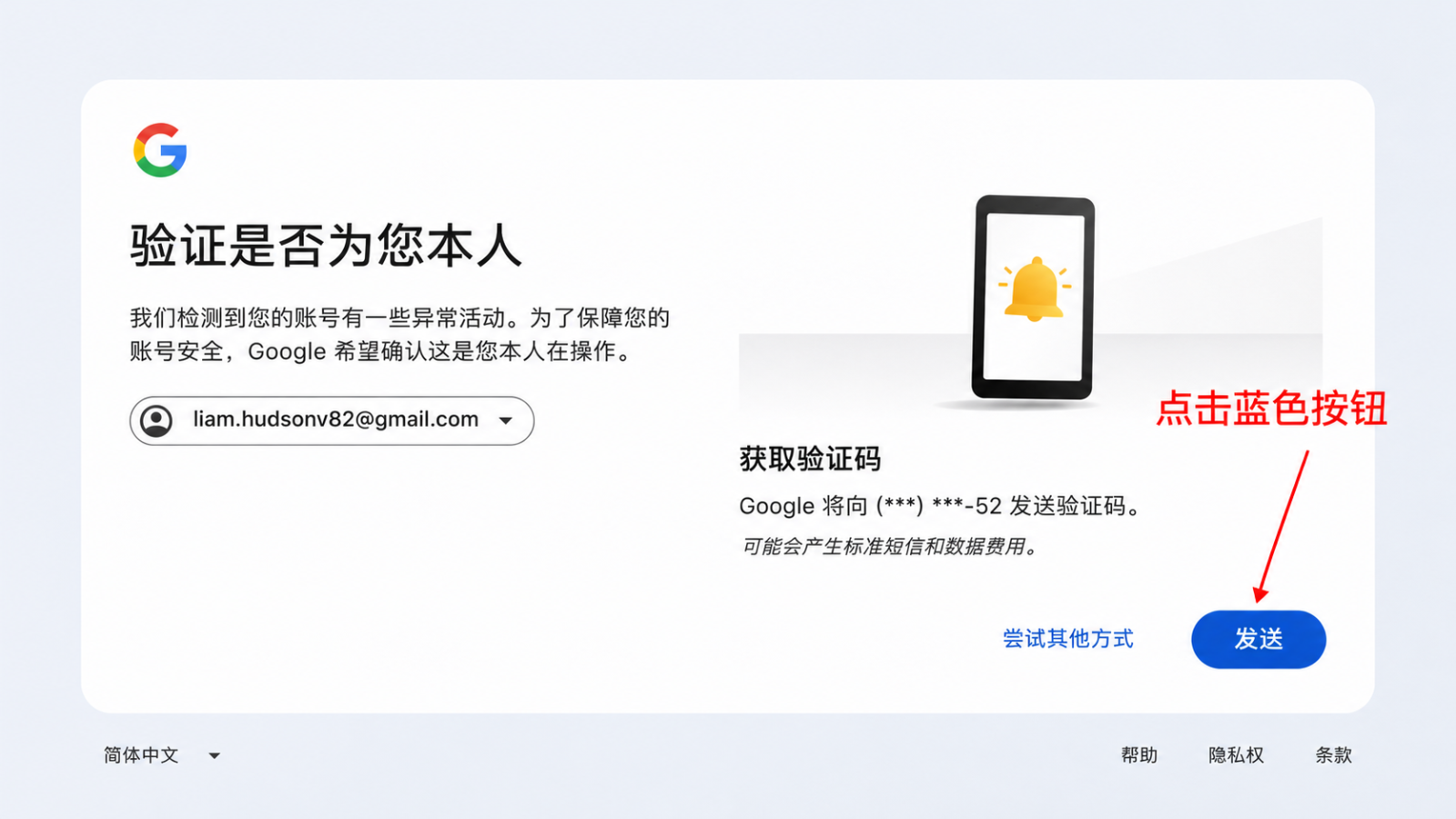
Step 4: Refresh the recovery tab
Return to the recovery-link tab you opened in Step 2 and refresh it. Once the page updates, it should display the corresponding six-digit verification code.
Step 5: Copy the code
Copy the six-digit code displayed on that page.
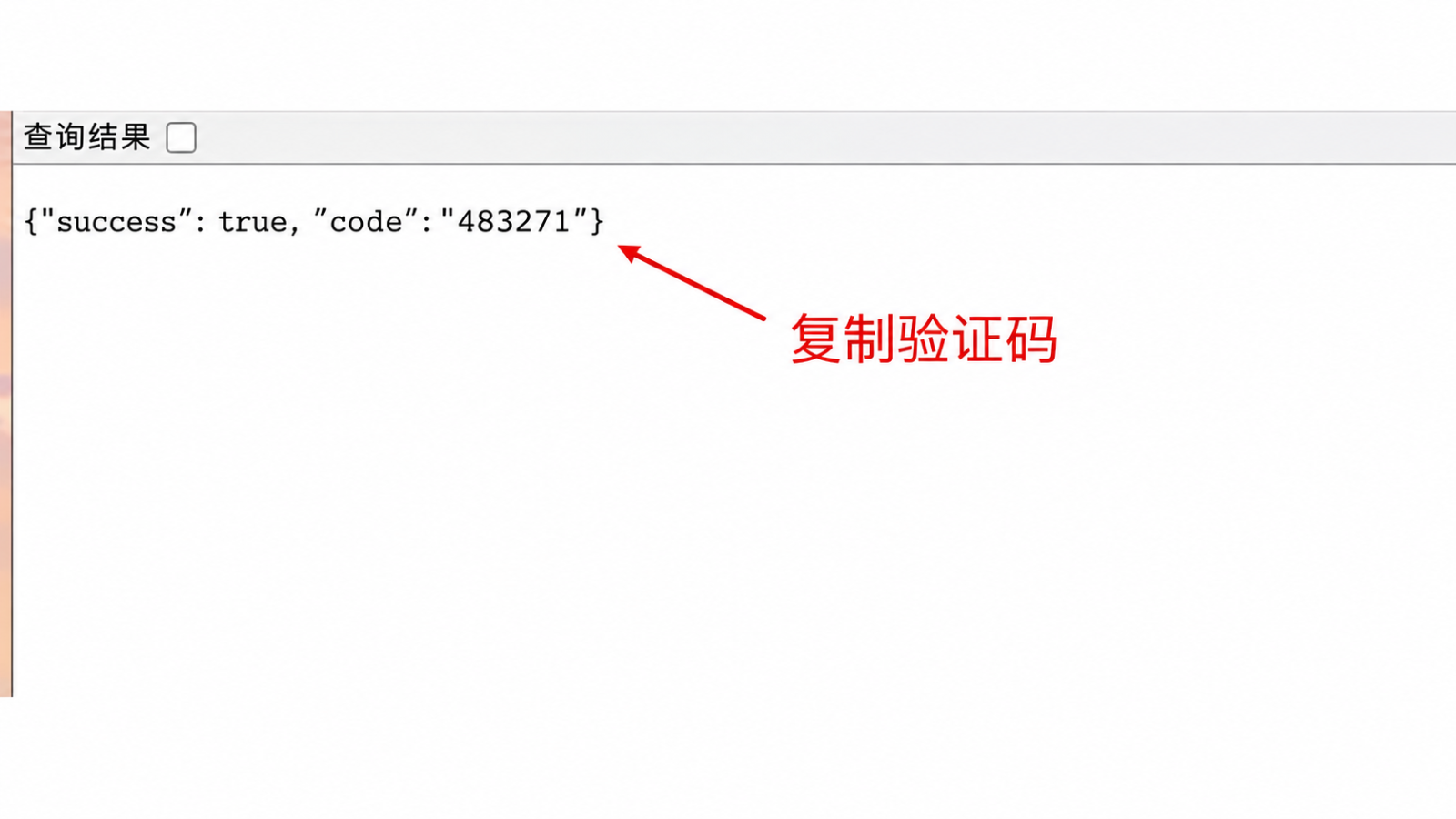
Step 6: Complete sign-in on Google
Return to Google’s sign-in page, paste the code into the verification field, and select “Next” at the lower right. Follow any remaining prompts.
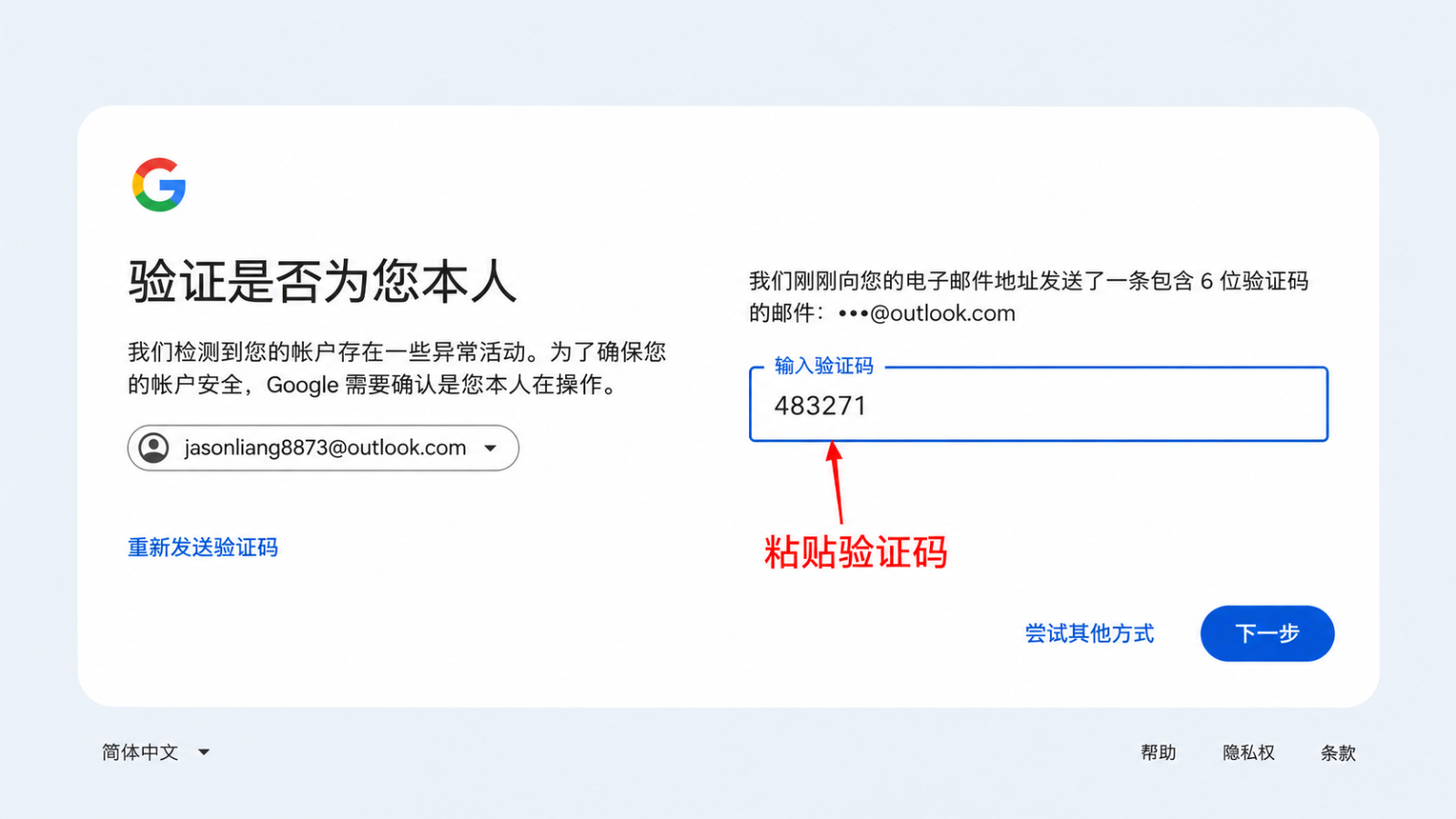
3. Things to remember
Try the usual 2FA method first. Use the recovery link only if that method does not complete verification.
Recovery links have an expiry period.
Keep the recovery tab open throughout the process.
Use each recovery link only with the Gmail account it was supplied for.
If no code appears after refreshing, check that you completed the preceding steps.
Keep account passwords, recovery links, and verification codes private. Do not share them with other people.