How to Sign Up for a Google Gmail Account? 2026 Gmail Registration Guide
This article covers the Gmail registration steps, phone number verification, common sign-up issues, and account security settings. It also explains how to get a ready-made Gmail account through HaoXiaoEr if you need one.
When you're signing up for ChatGPT, YouTube, or Google Drive, or you just need a reliable overseas email address for everyday use, Gmail is often one of the most common choices. But for first-timers, the real stumbling blocks aren't filling in your name and password — they're questions like: What's the actual difference between a Google Account and Gmail? Why does registration sometimes ask for phone verification? And what do you do when your desired username is already taken?
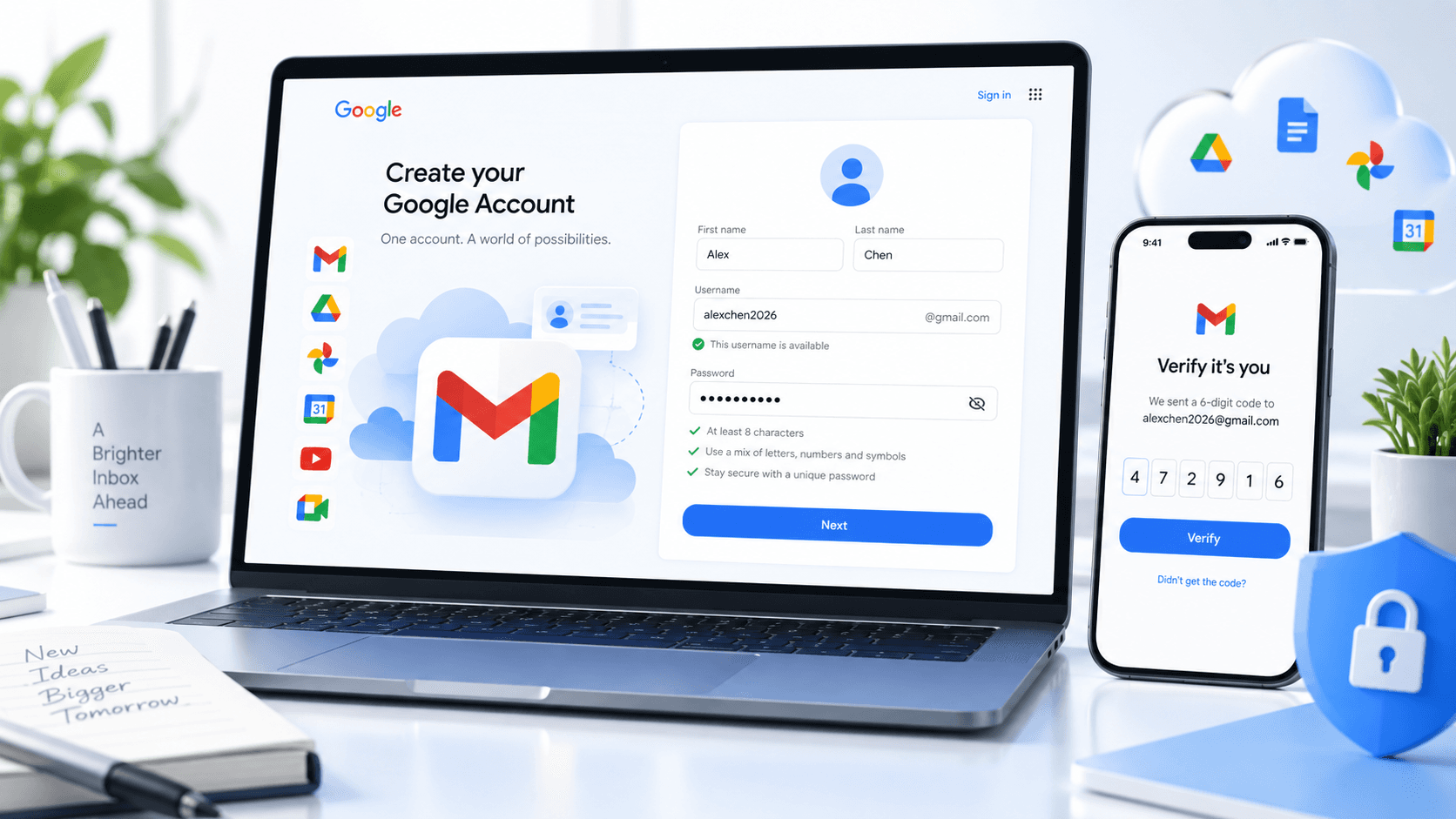
The truth is, Gmail itself is free to sign up for. Once you create a Google Account with a Gmail address, you can send and receive emails right away, and also use YouTube, Google Drive, Google Calendar, Google Play, and other Google services. Google also lets you create a Google Account using an existing third-party email address, so strictly speaking, "Google Account" and "Gmail" aren't exactly the same thing. Below, we'll walk through the current registration process step by step — how to sign up for Gmail, the problems you might run into, and what settings you should configure once your new account is created.
1. What Do You Need to Prepare Before Registering for Gmail?
The Gmail registration process isn't complicated, and for a regular personal user, there's not much you need to prepare in advance. That said, to avoid having to go back and change your information repeatedly, it helps to sort out a few things before you start.
1. A Working Browser
On a computer, you can use any common browser like Chrome, Edge, or Safari — no need to download a dedicated Gmail client.
On a phone, you can also register through a browser, then install the Gmail app afterward based on your preferences.
If the registration page keeps failing to load, first check whether your browser, network connection, and extensions are working properly. It's not a good idea to repeatedly refresh and resubmit your registration information in a short period of time.
2. Think Ahead About Your Gmail Username
A Gmail address typically looks like this: username@gmail.com
The "username" part is what you'll need to set during registration.
According to Google's current username rules, Gmail usernames can use English letters, numbers, and periods, and must meet certain length and character requirements. Underscores, plus signs, hyphens, and some other special characters cannot be used directly in a Gmail username.
In practice, the most common issue isn't a format error — it's that the username you want has already been taken. If the username matching your name isn't available, try adding easy-to-remember numbers, a year, or initials. For example, if you were planning to use: jackchen@gmail.com and it's already taken, try other combinations that aren't claimed yet. That said, don't add excessively long random strings just to find an available name — otherwise you'll have trouble remembering your own email address later.
3. Is a Phone Number Required for Registration?
According to Google's current general account creation process, adding and verifying a phone number is an optional step, and not all users see the exact same flow on the registration page. You can't simply assume that "registering for Gmail always requires a phone number," nor can you guarantee that every registration will avoid extra verification. Different devices, account environments, and actual pages may present different verification requirements. The safest approach is to follow whatever prompts appear on the page at that time. If the page does require verification, it's not advisable to frequently switch devices or repeatedly create accounts just to skip it — that approach tends to turn a simple registration into a more complicated problem.
2. How to Sign Up for Gmail: Complete 2026 Registration Steps
Once you've done your prep work, you can go ahead and create your Gmail account. The whole process usually takes just a few minutes:
Step 1: Go to the Google Account Registration Page
Open the Google Account sign-in page and find "Create account."
Google will ask you to choose the account purpose. You'll typically see options like:
- For my personal use
- For my child
- For work or my business
If you're just signing up for Gmail for personal use, select "For my personal use." Google's current official account creation flow also starts here.
 Step 2: Enter Your Name and Basic Information
Next, fill in your name, date of birth, and other basic information as prompted.
If you plan to use this Gmail account long-term, try to keep your information consistent — don't fill in one set of details today and change them frequently later.
This is especially important for when you forget your password or need to verify your identity down the road. Stable account information is generally much easier to manage than randomly filled-in details.
Step 3: Set Your Gmail Address
Once you reach the email address setup page, Google may suggest a few available Gmail addresses based on the information you entered earlier. You can also choose to create your own.
For example:
yourname@gmail.com
If the system says: "That username is taken"
It means this Gmail address has already been registered by another user, and you'll need to choose a different one. At this point, you can adjust the combination based on your original name — for example, adding a year, numbers, or initials.
Also note that periods in a Gmail address can't simply be used to create a "completely different account." There's no point in trying to add periods endlessly just to work around a taken username.
If you plan to use this email long-term for work, social accounts, or various online service registrations, try to keep the username simple and easy to recognize.

Step 4: Set Your Login Password
Once you've confirmed your email address, you'll need to set a login password for your Google Account.
Note that this "Gmail password" is actually the login password for your Google Account. When you use Gmail, Google Drive, YouTube, or any other service that requires signing in to a Google Account, you'll use the same authentication system.
Try to avoid using passwords like:
- Your birthday
- Your phone number
- 123456
- The pinyin of your name
- A password you've already used on another website
Google also recommends avoiding easily guessable personal information and setting a unique, strong password for your account. If this Gmail account is important, consider using a password manager to store it rather than relying solely on your browser's autofill.
Step 5: Complete Verification as Prompted
Some users will go straight to the next step after registering up to this point; others may see phone number, email, or other forms of identity verification.
Seeing a verification step doesn't mean you did something wrong earlier.
Just follow whatever the current page requires.
If the page asks for phone verification, use a number that can receive verification codes normally and that you'll continue to have access to.
It's not advisable to frequently switch networks, browsers, or repeatedly submit registration requests in search of a so-called "Gmail registration method without verification." For a Gmail account you plan to use long-term, being able to reliably recover your account matters more than skipping one verification step.
Step 6: Accept the Terms and Complete Account Creation
After filling in your information and completing any necessary verification, confirm Google's terms of service as prompted to finish creating your account.
Once registration is successful, you can go straight into Gmail.
At the same time, this Google Account can also be used for YouTube, Google Drive, Google Calendar, Google Play, and other Google services.
At this point, your new Gmail account is essentially set up.
3. After Registering Gmail, Don't Rush to Use It Right Away
Many people's Gmail registration habit goes like this: registration successful → see the inbox → immediately close the page.
But if you plan to use this account long-term, those few minutes after registration are actually quite important.
At minimum, you should check the following three settings.
1. Add a Recovery Email
The main purpose of a recovery email isn't to receive emails — it's to provide an additional way to recover your account when you can't log in to Gmail normally.
For example:
If you forget your password, notice suspicious login activity, or suddenly can't complete normal verification one day, you may need recovery information to confirm account ownership.
Google explicitly recommends that users set up recovery information in advance so they can regain access to their account if they forget their password, if the account is used by someone else, or if they can't log in for other reasons.
If you already have another email address you use long-term, you can set it as your recovery email.
2. Add a Recovery Phone Number You'll Keep Long-Term
If you didn't add a phone number during registration but plan to store important emails in this Gmail account long-term, you can add a phone number you'll have ongoing access to in your account security settings.
Don't change your phone number frequently.
The whole point of recovery information is this:
When you actually need to recover your account, you can still receive verification codes or complete identity confirmation.
3. Enable Two-Step Verification
Relying solely on "email + password" to protect an important account isn't very secure.
If your Gmail contains work emails, website accounts, payment notifications, or registration emails from various platforms, it's a good idea to enable two-step verification.
Google's current account security system supports two-step verification, as well as passkeys and other login methods, to add an extra layer of identity verification beyond your password.
This is especially true for Gmail accounts you use long-term — it's best to configure your security settings right after registration rather than dealing with them after something goes wrong.

4. Common Reasons Why Gmail Registration Fails
In practice, not everyone can complete Gmail registration on the first try. If the page won't let you proceed, don't rush to re-register — figure out where the problem is based on the specific message you see.
1. Gmail Username Is Already Taken
This is the most common situation.
Gmail has an enormous number of users, and simple names, English words, or common number combinations were claimed long ago.
When you see that a username is unavailable, just try a different combination.
If this email will be used for formal communication later, it's better to adjust the numbers or name combination rather than adding a bunch of random characters.
2. Username Format Doesn't Meet Requirements
Not all characters can be used in a Gmail username.
For example, underscores, plus signs, and certain special characters cannot be used directly as a Gmail username. Google has clear restrictions on username length and allowable characters.
If the page says "Username not allowed," check the character format first rather than repeatedly submitting the same content.
3. The Page Requires Extra Verification
Some users encounter phone number or other verification steps during registration.
When that happens, just follow the page's instructions.
Don't treat any single online tutorial's process as a fixed standard, because different users may see different registration pages.
As long as you've confirmed you're on Google's official page, following the current page step by step is usually the easiest approach.
4. Registration Page Keeps Loading Abnormally
If your information is fine but the page keeps spinning, buttons don't respond, or you get an error after submitting, try the following:
Reopen the official registration page;
Check your current network connection;
Disable browser extensions that might interfere with page loading;
Clear your browser cache and reopen the page;
Try a different browser.
If you've already submitted many times in a row, there's no need to keep repeating the action immediately — first figure out which step is causing the problem.
5. You Already Have a Google Account but Can't Find Gmail
There's another situation that's easily overlooked:
Having a Google Account doesn't necessarily mean it was originally created with a Gmail address.
Google allows users to create a Google Account using an existing third-party email address.
So some users can use certain Google services normally but find they don't have a corresponding @gmail.com email address.
If this applies to you, you need to determine whether your current Google Account has Gmail enabled, rather than creating a completely different account.
5. Besides Registering Gmail Yourself, Are There Other Options?
For regular personal users, signing up for Gmail for free through Google's official page is usually the simplest approach.
But in practice, there's another type of need.
For temporary projects, business testing, or account management scenarios, some users don't just need a personal email for daily use — they need already-created Gmail accounts, or they need a large number of Gmail accounts. In these cases, completing registration and setup one by one can be quite tedious.
If you do have this kind of need, the most straightforward way is to buy ready-made Gmail accounts directly from HaoXiaoEr, a one-stop global digital account purchasing platform.
Here are the specific steps:
Go to HaoXiaoEr
↓
Find "Email Accounts" in the product categories
↓
Select "Gmail"
Then you can choose the type of Gmail account you need.
In addition to offering Gmail accounts from different countries like the US and UK, HaoXiaoEr also provides various specifications including new accounts, aged accounts, and premium accounts, meeting the diverse needs of different users.
6. What's the Difference Between Registering Gmail Yourself and Using a Ready-Made Account?
The two approaches solve different problems, and there's no one-size-fits-all choice that works for every situation.
| Comparison Item | Self-Registered Gmail | Ready-Made Gmail Account |
|---|---|---|
| How to Get | Register through Google's official page | Obtain through a third-party platform |
| Registration Cost | Personal Gmail is free to register | Priced based on account type |
| Registration Process | Fill in your own information and complete registration | Log in after receiving account credentials |
| Gmail Address | Choose an available username during registration | Choose the address you need |
| Initial Information | Filled in and set by yourself | Check specific delivery details |
| Password | Set by yourself during creation | Check whether it can be changed after receiving |
| Recovery Information | Added by yourself | Re-check after receiving |
| Use Cases | Daily personal email, long-term use | Specific projects, testing, or account management needs |
The Gmail registration process itself isn't complicated. From creating a Google Account and choosing an email address to setting a password, following the page prompts step by step usually gets it done quickly. What really deserves your attention is the account security setup after registration.
If you plan to use this Gmail account long-term, it's best to add a recovery email and recovery phone number early, and check your two-step verification and login devices. That way, even if you forget your password, switch devices, or encounter suspicious login activity, you'll have an easier time recovering your account.
For regular personal users, signing up for Gmail for free through Google's official channels is usually the most suitable approach. But if you need already-created Gmail accounts for project testing, account management, or other specific scenarios, you can also choose to purchase directly through HaoXiaoEr. Whether you register yourself or use a ready-made Gmail account, the ultimate goal isn't just about "having an email address." Whether the account can be used stably long-term and whether you control the recovery information — those are the things that truly matter down the road.
Related Q&A
1. What should I do if I get a "This phone number can't be used for verification" message when registering Gmail?
This usually happens because your current IP address, device, or browser has been flagged by the system for frequent registration activity, or because the number has been linked to too many accounts. Try using a phone number that hasn't been used to register Google accounts frequently, or try again on your phone using Chrome or Safari in incognito mode. Sometimes you can also bypass this hurdle by adding a Google Account directly through your phone's built-in system email app (like iOS Mail).
2. After registering Gmail, what other services can I log into with the same account?
Once created, what you actually have is a universal Google Account. You can use the same email and password to log into YouTube, Google Drive, Google Docs/Sheets, Google Maps, Google Photos, Google Calendar, Google Play Store, and all other Google ecosystem products.
3. How many Gmail accounts can one phone number verify or be linked to?
Google imposes limits on how many times a single phone number can be used for verification in a short period, as well as the total number of linked accounts. Typically, one phone number can help verify several accounts, but if you frequently receive verification codes for multiple new accounts in a short time, you'll trigger a "This number has been used too many times" block. It's recommended that individual users don't create multiple accounts under one number in a short period.
4. I forgot the Gmail password I set during registration. How do I recover it?
Visit the Google Account recovery page and enter the corresponding Gmail address. The system will send a one-time verification code through your previously linked recovery email or recovery phone number to verify your identity. If you've enabled a passkey or security key, you can also use the relevant device to unlock and reset your password.
5. How much free storage does Gmail provide after successful registration?
Every free Google Account comes with 15 GB of free storage by default. Note that this 15 GB is shared across Gmail (emails and attachments), Google Drive (cloud files), and Google Photos (original quality photo backups). If the storage runs out, you may not be able to receive new emails.
6. Why do newly registered Gmail accounts get banned or restricted so easily?
New accounts go through a security risk-control period during their first few days. If you immediately start sending bulk emails, frequently switch between network nodes in different countries, or rapidly bind and register on many unfamiliar websites right after signing up, the system may flag it as abnormal automated behavior and temporarily lock your account. It's best to use a new account normally for a few days — sending and receiving emails or browsing — to gradually build up account credibility.