How to Change Your App Store Country or Region: A Practical Guide to Switching iOS Accounts and Avoiding Pitfalls
Learn how to change your App Store country or region, including Apple Account balance, subscriptions, Family Sharing, payment methods, common errors, and when using a separate regional Apple ID may be easier.
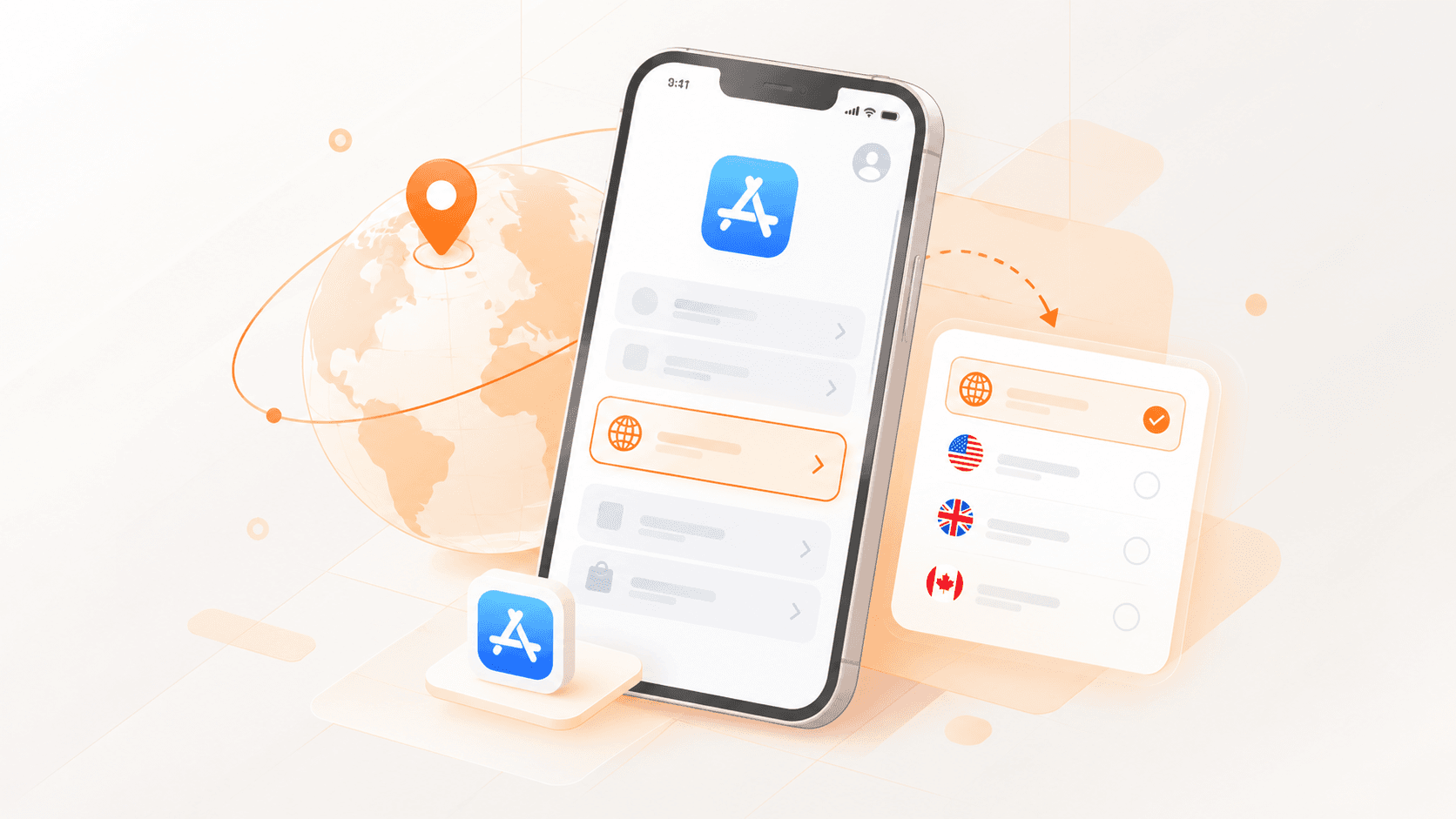
Many Apple users run into situations where they can't download a specific app from their local App Store, or they want to try games and AI tools exclusive to the US or Japan store. The most direct solution is to switch regions on your Apple Account. Simply changing the country or region on your existing account seems easy enough, but in practice, it's easy to get stuck in dead ends like "can't clear the remaining balance," "subscription hasn't expired yet," or "can't link a local credit card." This article starts from real-world usage scenarios and walks you through the exact steps to switch regions, along with the requirements you need to meet beforehand, so you can avoid unnecessary detours.
1. Key Conditions to Check Before Switching Regions
Many people get stuck not because they don't know where to click, but because their account doesn't yet meet the requirements for changing regions.
The most common issue is account balance. If your Apple Account still has a balance, you typically need to spend it before you can change your country or region. The trickiest case is when you have just a tiny bit of balance left—too little to buy anything. In that situation, you'll need to follow whatever process Apple provides rather than repeatedly signing out and retrying.
The second commonly overlooked issue is subscriptions.
This includes Apple Music, iCloud+, or other services subscribed through the App Store. Note that turning off auto-renewal doesn't mean the subscription ends immediately. If there are still ten-plus days left in the current billing cycle, you'll usually need to wait until it expires before you can switch regions.
Pre-orders, rentals, and pending refunds—any transactions that haven't fully completed—should also be resolved first.
Then there's Family Sharing. If your account is still part of a Family Sharing group, changing regions may also be blocked.
Before actually attempting the switch, I usually run through these items first:
| Check Item | Why It May Affect Region Switching | Recommendation |
|---|---|---|
| Apple Account balance | May prevent region change if balance remains | Spend the remaining balance first |
| Active subscriptions | Current subscription period hasn't ended | Cancel renewal and wait for expiry |
| Refunds, pre-orders, etc. | Account still has pending items | Wait until transactions fully complete |
| Family Sharing | Family members' region settings may create restrictions | Check or leave the family group first |
| New region payment info | Different regions support different payment methods | Confirm new region requirements in advance |
There's also an often-underestimated issue: payment methods in the new region. Different countries and regions support different banks, PayPal, or other payment channels, so don't assume your current payment method will still work after switching.
If you're only downloading free apps, this might not be obvious. But once you want to buy paid apps, subscribe to services, or make in-app purchases, payment methods quickly become a real problem.
2. Detailed App Store Region Switching Steps (Using the US as an Example)
If your main account meets all the conditions above, you can switch regions directly through your iPhone's system settings:
Open your iPhone's Settings and tap Apple Account at the very top.
Tap Media & Purchases, then select View Account from the popup (you may need to verify with Face ID or your password).
On the account settings page, tap Country/Region, then tap Change Country or Region.
Select your target region from the list (e.g., United States, Japan, Hong Kong, etc.) and tap Agree to the terms in the top-right corner.
Fill in payment and address information:
Payment method: Select None. If there's no "None" option, try temporarily switching your phone's system language to English and retrying on a stable network connection.
Billing address: You'll need to fill in a street, city, state/province, and zip code for the target region. It's best to find a real public address (like a school or commercial area) through a map service beforehand. If choosing the US, consider using a tax-free state like Oregon or Alaska to save on sales tax for future app purchases.
Once confirmed, tap Next or Done, and your account will be successfully switched to the new region.

3. If You Just Want to Download Overseas Apps, I'd Actually Advise Against Constantly Messing with Your Main Account
This is the point I think is most worth emphasizing. Many people want to switch regions not because they're planning a long-term migration of their Apple Account. They just want to download an AI tool only available in the US store, or play a game exclusive to the Japan store. In that case, messing with a main account you've used for years just for one app is often more trouble than it's worth.
That's because a long-used Apple Account is usually tied to a lot of things: iCloud photos, contacts, notes, Apple Music, iCloud+, domestic apps, and various other subscriptions. To switch regions, you'd need to clear your balance, wait for subscriptions to expire, and redo your payment method. And when you eventually need to download an app exclusive to your home region, you might have to go through the whole process again.
So if your need is just to occasionally download apps from other regions, a simpler approach is usually to separate the two purposes: keep your main Apple Account for iCloud, photos, backups, and everyday domestic apps; then set up a separate Apple ID for the target region and use it only under "Media & Purchases" in the App Store. This way, your main account doesn't need to keep changing regions based on download needs.
For example, if you normally use your home-region account to sync photos and contacts but occasionally need to download a US app, just signing into the US account in the App Store is enough. There's no need to change the iCloud main account at the top of your iPhone settings.
Many first-time foreign Apple ID users will sign out of the Apple Account at the top of their phone and sign the new account in entirely. Actually, if you're just downloading apps from the App Store, this usually isn't necessary—and it can easily mess up iCloud syncing, photos, and other data.
If you don't want to set up a foreign account yourself, the simplest and most direct way is to buy a new Apple ID directly from Haoxiaoer. At Haoxiaoer, you can choose different regions and types of Apple IDs based on your needs. Once you have it, if you're only using it to download apps, I'd also recommend treating it as an App Store account—don't casually replace the iCloud main account on your phone.
Here's a quick comparison to make the difference clearer:
| Comparison | Directly Changing Main Account Region | Setting Up a Separate Foreign Apple ID |
|---|---|---|
| Upfront work | Need to check balance, subscriptions, and Family Sharing | Usually more straightforward |
| Impact on main account | Greater | Minimal |
| iCloud usage | Managed together with main account | Can keep original main account |
| Downloading overseas apps | Yes | Yes |
| Multi-region switching | Back-and-forth region changes are cumbersome | Just switch App Store accounts |
| Best for | Long-term migration to a new region | Occasional downloads from other regions |
If you're permanently moving abroad, or will mainly be spending and subscribing in the new region going forward, then formally switching your main account is certainly more reasonable. But if it's just for a few apps, I'd prioritize the second option.
Conclusion
Changing your App Store region isn't complicated—the key is clarifying your needs. If your original account has no leftover balance or unexpired subscriptions, and you have a payment method for the target region, you can complete the change in just a few minutes following the steps above. But if you're only doing it to download a few overseas apps, registering or setting up a brand-new separate foreign account is the best choice that balances convenience and account security.
If you find the process tedious, or need accompanying overseas network/digital services, feel free to check Haoxiaoer for related Apple foreign region accounts, overseas eSIM cards, and digital subscription tutorials and services—ready to use, helping you quickly get past the region-switching barrier.
Related Q&A
Q1: Why is there no "None" option for payment method when switching regions?
If there's no "None" option when selecting a payment method, there are usually two reasons: first, you used a network environment with significant IP changes during the switch, which triggered Apple's risk control; second, your account has unpaid bills or leftover unexpired subscriptions. In this case, try using a clean local network, or simply switch to a brand-new foreign account.
Q2: How do I top up a foreign account to buy paid apps or make in-app purchases?
If you don't have a foreign bank card, you can purchase an Apple Gift Card for the corresponding region and redeem it to your account balance. Remember to always use legitimate channels to avoid buying black-market cards of unknown origin, which can get your account banned. If you need to top up US, Japan, or other foreign accounts, you can also get official gift cards and overseas digital services directly from the Haoxiaoer platform, with better financial security.
Q3: After switching regions, are previously downloaded apps still there? Can they still be updated?
Apps already downloaded to your phone before switching regions won't be lost and can still be opened normally. However, if an app isn't available in the new region's store, you won't be able to get version updates in the future. In that case, you'll need to switch back to your original account's region to update it.