How to Sign In to a Telegram Account from HaoXiaoer
Follow the delivered Telegram sign-in instructions and check verification details and account security.

After purchasing a Telegram account from HaoXiaoer, just follow this guide. The login process is basically the same for mobile and desktop, and you can get it done in two minutes.
1. Prepare These Two Things First
Stable network: Connect your phone or computer to a proxy first, preferably a clean US native node. Do not switch nodes during login, as frequent region changes can easily trigger official security checks. If you have logged into other accounts on your computer before, it is recommended to open an incognito window or use a clean browser, preferably an anti-detect browser, to avoid cache mixing.
Have your order details ready: Go back to the order details page on HaoXiaoer and copy the two items from the delivery text: phone number and API verification code link.
2. Complete Login in Four Steps
1. Enter phone number and send verification code Open the Telegram client (mobile app or desktop), select the country/region code corresponding to the phone number, enter the number from the delivery text, and click "Next".
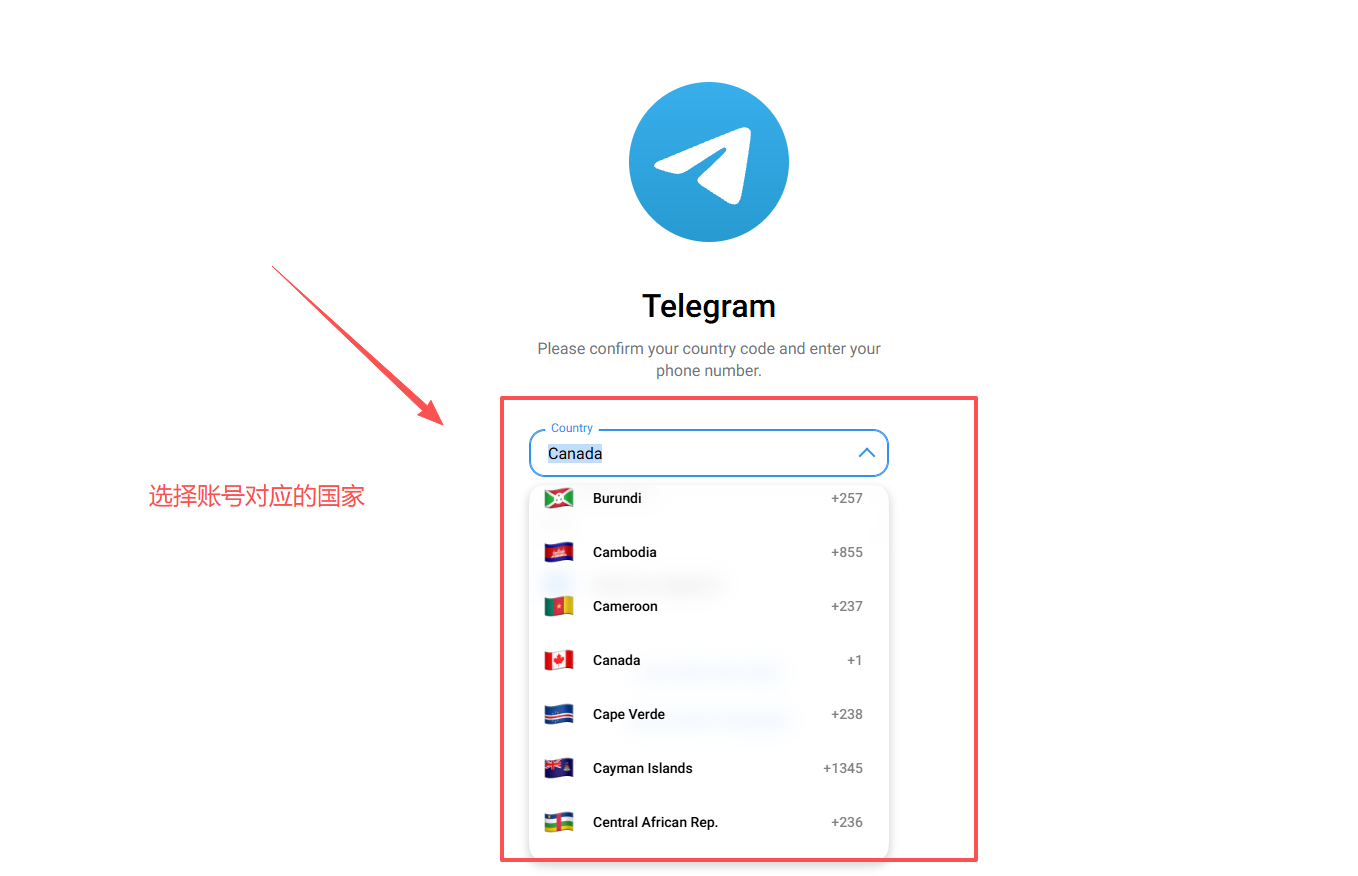
2. Open the verification code link to see the code After clicking Next, switch back to the order details page and open the "API verification code link" in your browser. The verification code for this login will appear directly on the page.
Tip: Make sure to click send verification code in Telegram first, then refresh this link. If you don't see the number right away, wait a few seconds and refresh the page.
3. Enter the verification code to log in Enter the verification code you see back into the Telegram input box and confirm. If the system prompts you to set a new password or enter a name, just fill in anything as prompted to skip.
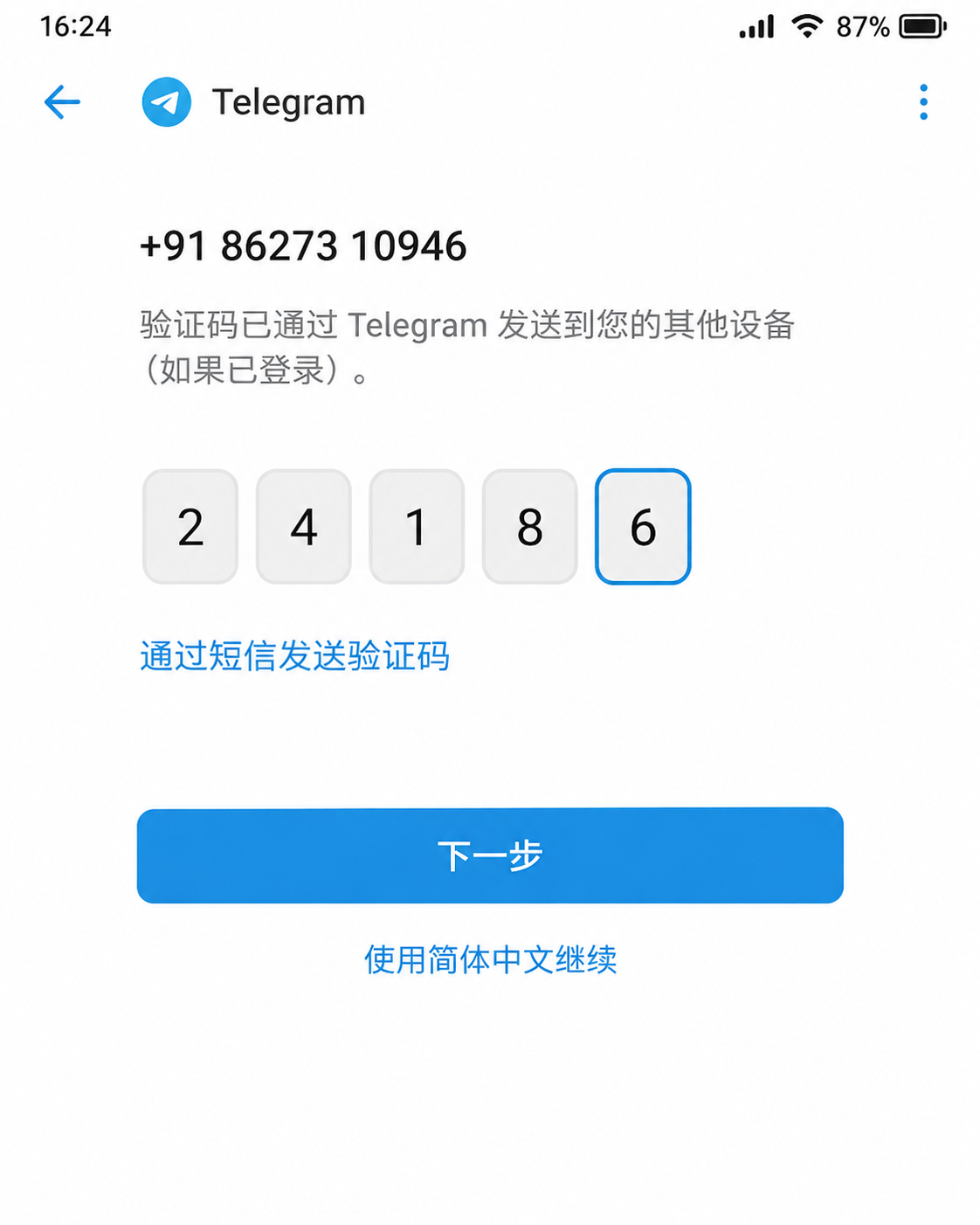
4. Done, enter the main page Once verified, you can enter the main interface directly. It is recommended to click around a bit after logging in to confirm the account is normal, and save a backup of the delivered account details from your order.
3. A Few Pitfall Reminders
Don't log out of all devices: After successful login, make sure at least one phone or computer stays logged into this account. Because when you log in on a new device later, Telegram will send the verification code directly to your logged-in client. If you log out of all devices, it will be troublesome to receive the code next time.
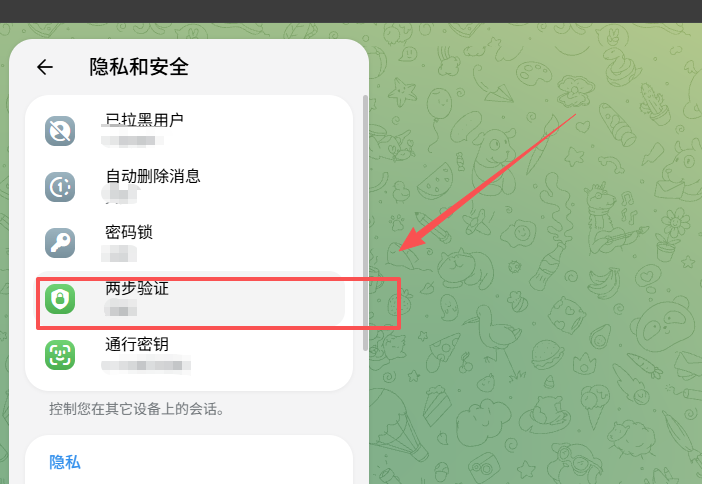
Set a two-step password (optional): For accounts without a two-step password, if you plan to use it long-term, you can set a password in Telegram's "Settings - Privacy and Security - Two-Step Verification" after logging in. This makes the account more secure and prevents recovery.
If you encounter email or SMS fee prompts: Occasionally the official system may ask you to bind an email or prompt SMS fees. Just follow the official instructions on the page. Do not trust any third-party services.
Keep the delivery text private: The phone number and verification code link are all you need for this account. Keep them safe and do not share them with others.
What if you can't log in: If the verification code doesn't appear or the account is abnormal, first check carefully whether the country code and phone number were copied correctly (especially no extra spaces). If you confirm there are no errors and still can't log in, take a screenshot of the error page and contact the website's online customer service for help.
For a newly obtained account, take it slow. Don't repeatedly click resend verification code in a short time. Just log in steadily and you're done.